
A checkout funnel helps you decide where to investigate: before checkout starts, during checkout, or in purchase measurement. This tutorial builds a three-step funnel in GA4, reads a real demonstration, and adds a second funnel for shoppers who skip the cart.
The eight screenshots supplied with this tutorial show the Google Merchandise Store Demo for 23 September–20 October 2026. They are a historical practice example, not your store’s results or a checkout benchmark. The example’s mobile-group completion rate is 28.66%, versus 54.24% for the desktop group; the next task is to investigate the difference, not assume a payment defect.
1. Check the events before building the funnel
Open a GA4 ecommerce property you are authorized to use. For practice, use Google’s official Demo account. The Demo contains obfuscated business data and restricts exports and Data API access; repeat the method in your own property when you need operational records.
Confirm that the website sends the exact recommended events below. Adding an event name to an exploration does not install or repair tracking. Google’s ecommerce implementation guide explains the events and parameters.
| Milestone | Event name | Check on your website |
|---|---|---|
| Add a product to the cart | add_to_cart | Sent after a real cart addition, with the correct product details. |
| Start checkout | begin_checkout | Sent when checkout actually starts, including supported express routes. |
| Complete a purchase | purchase | Compare the event with the store’s order record; inspect transaction_id, value, currency and items. |
Record the property, reporting time zone, date range and main checkout routes. Confirm events with a controlled test in an authorized test environment and inspect them in DebugView. Check that a completed test purchase is received once with the intended transaction ID. Repeated page loads, duplicate integrations, blocked collection and consent choices can change what GA4 measures.
2. Create a personal funnel exploration
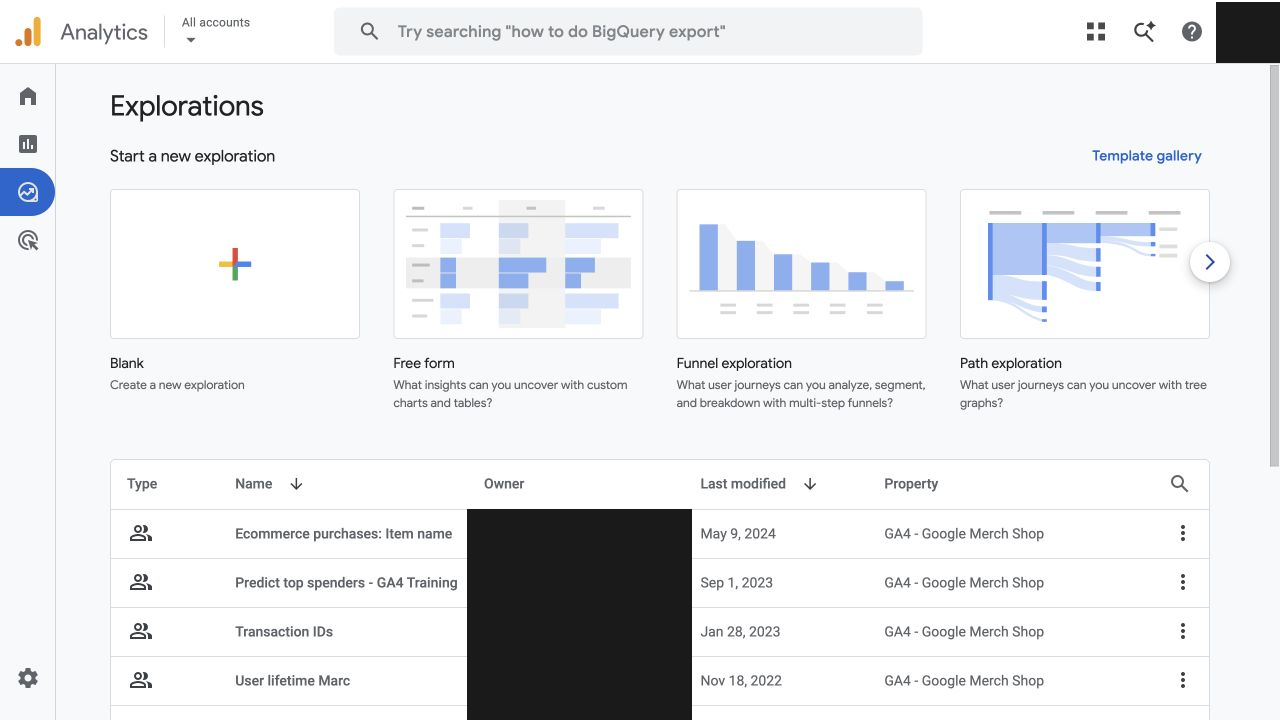
Choose the intended property, open Explore → Funnel exploration, and create your own exploration. In the supplied example the property is GA4 – Google Merch Shop. Avoid changing another person’s shared exploration.
Give the exploration a recognizable name, such as “Beecommercer – checkout investigation”. In Variables, set a complete comparison period. The screenshots use 23 September–20 October 2026. For your store, choose a period with enough measured activity and avoid comparing an incomplete day with complete days.
3. Define the three-step cart-to-purchase path
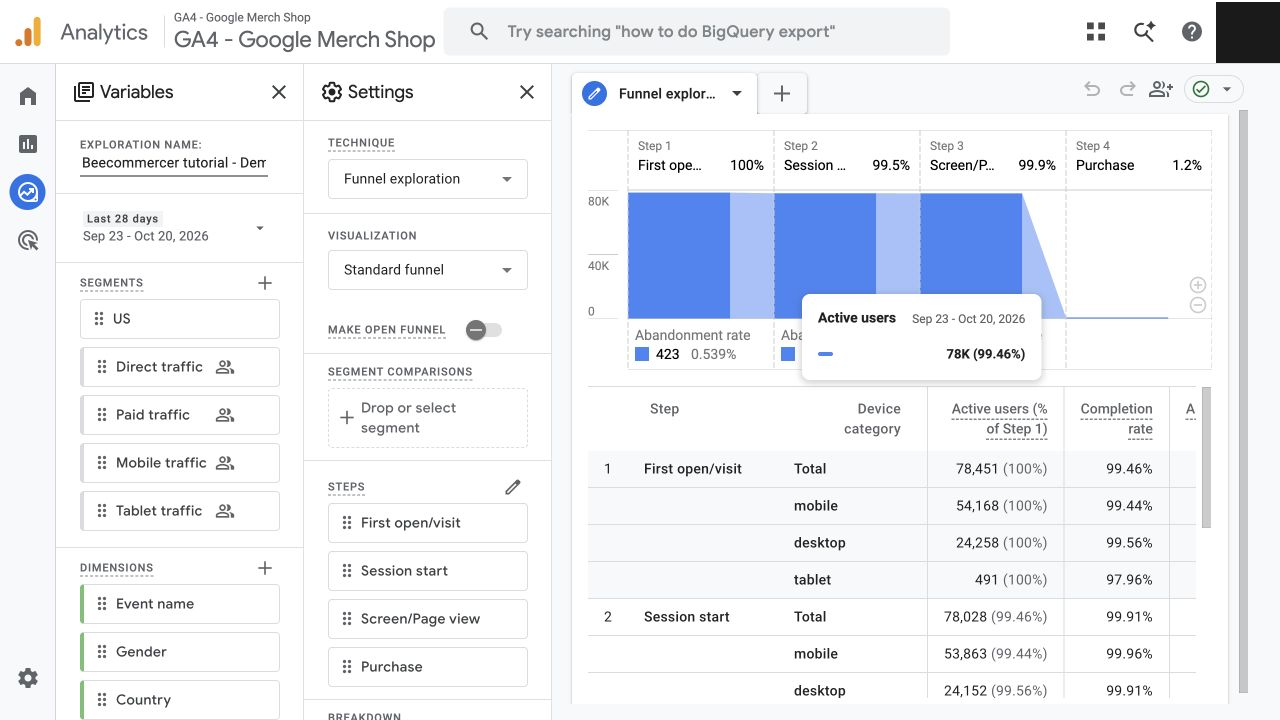
In Settings, click the pencil beside Steps. Edit each step’s name and condition. Use the event selector’s search to find the exact event; remove unrelated defaults and unused alternatives such as in_app_purchase for this web-only example.
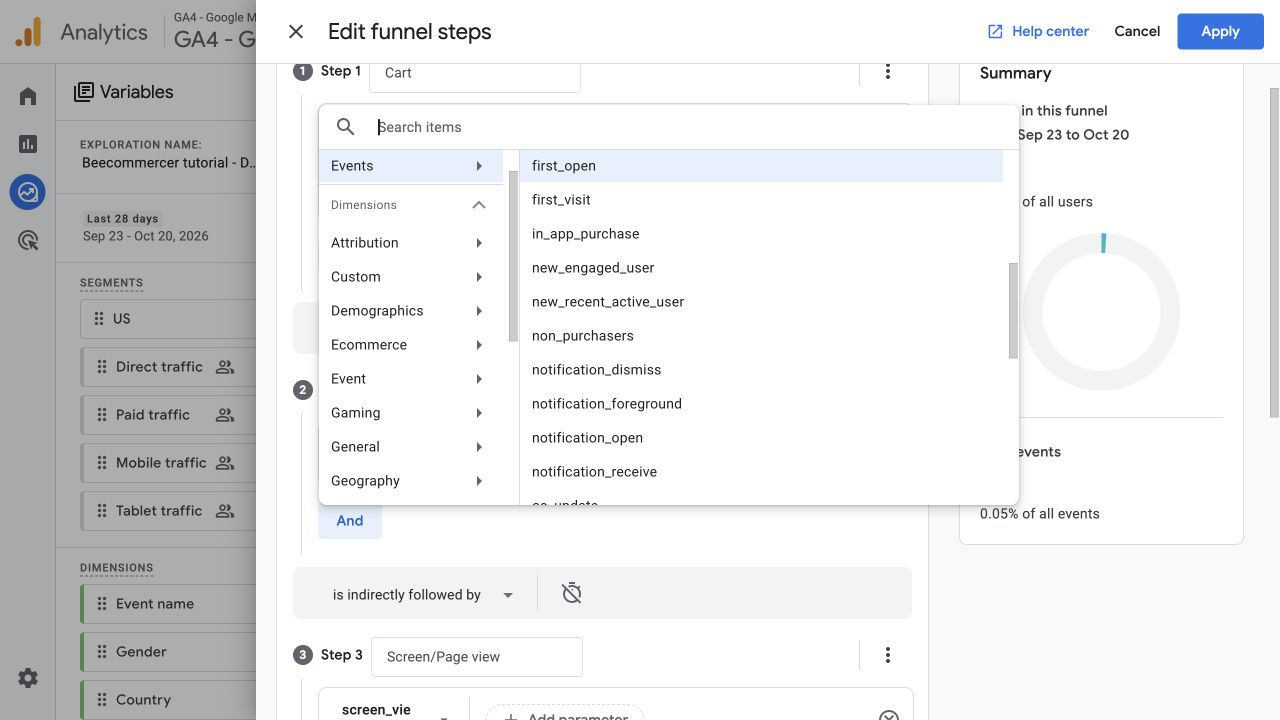
Set Cart = add_to_cart, Checkout = begin_checkout, and Purchase = purchase. Scroll through all three steps before applying. An “Or” control is an option to add another condition; its presence alone does not mean an extra condition has been selected.
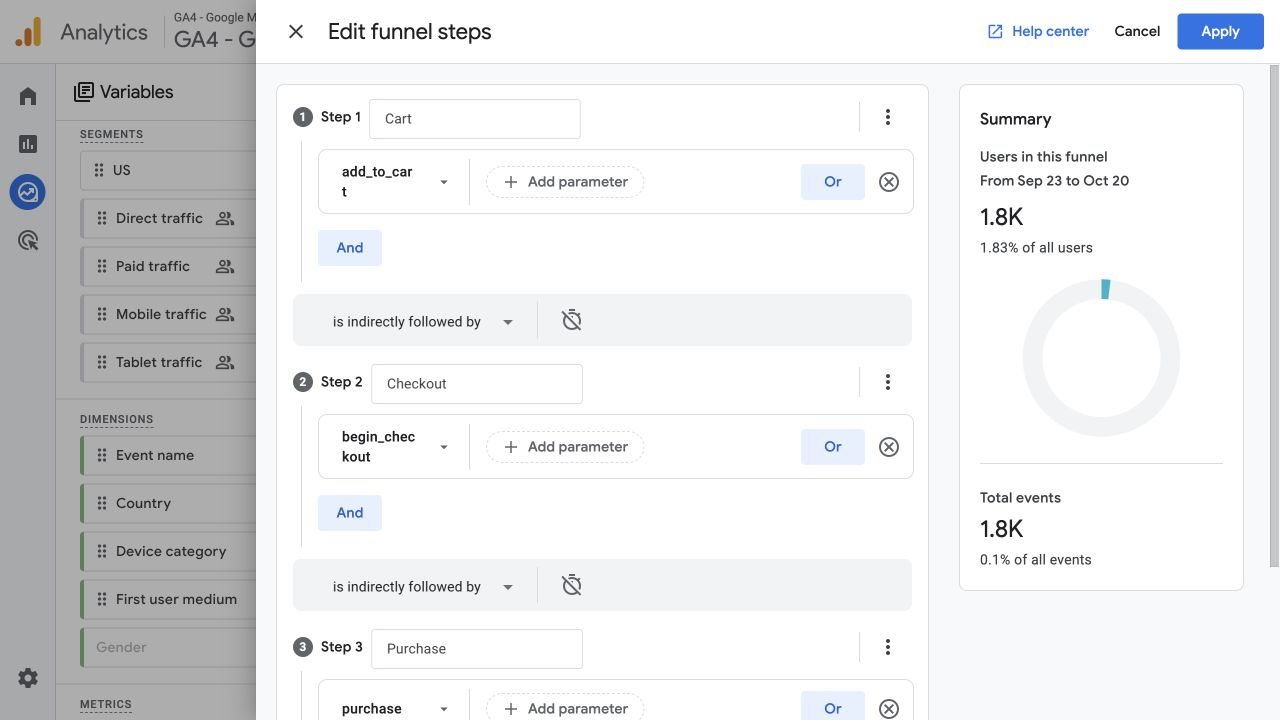
Use is indirectly followed by between steps so browsing and other measured actions may occur in between. Click Apply, keep Make open funnel off, and put Device category in Breakdown. Segments listed in Variables are not applied until you add them to Segment comparisons.
| Setting | Use for this baseline | What it means |
|---|---|---|
| Closed funnel | Make open funnel off | Users must enter at Cart and satisfy the required sequence. |
| Indirect succession | Between both pairs of steps | Intervening events are allowed. Direct succession requires the next action immediately. |
| Time limit | Record any Within setting explicitly | An elapsed-time limit is not the same as a same-session rule. |
| Segments and filters | Record only those actually applied | Keep them identical when comparing periods or groups. |
Google’s funnel exploration guide describes open entry, sequence rules and time controls. This setup adds no same-session restriction. Read it as users completing a defined sequence, not a count of checkout sessions or individual orders.
4. Read the totals and compare device groups
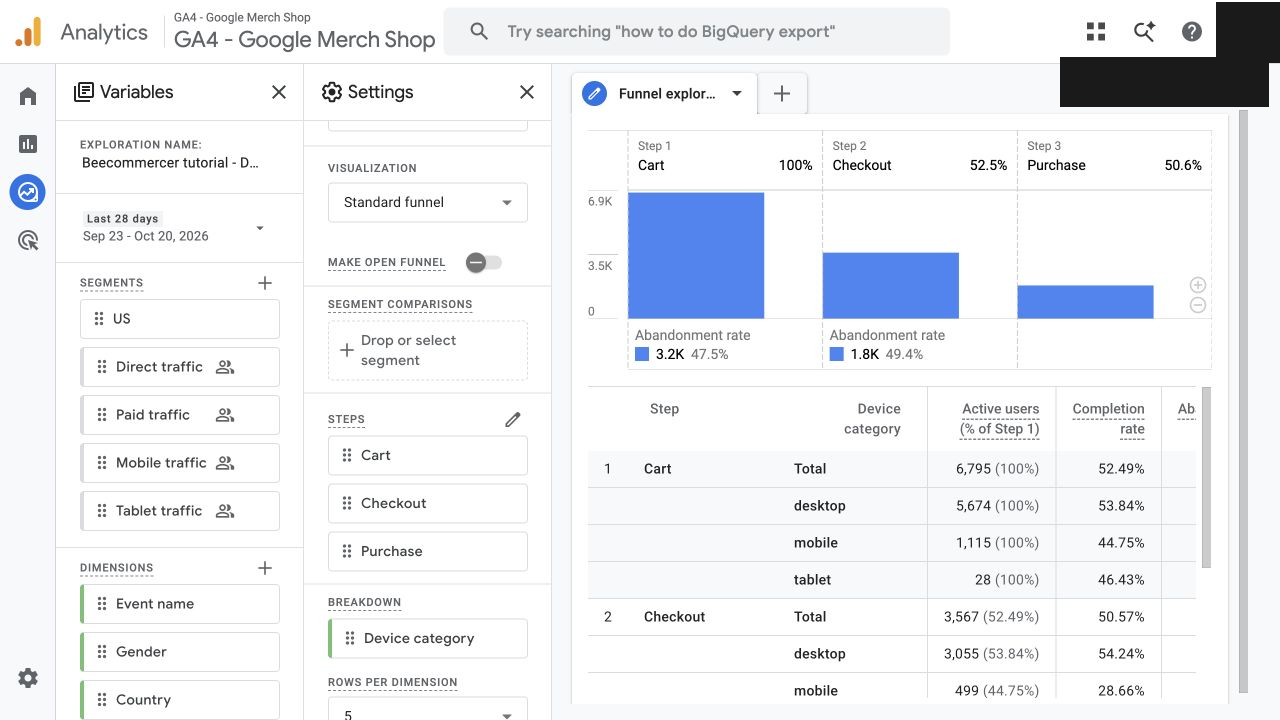
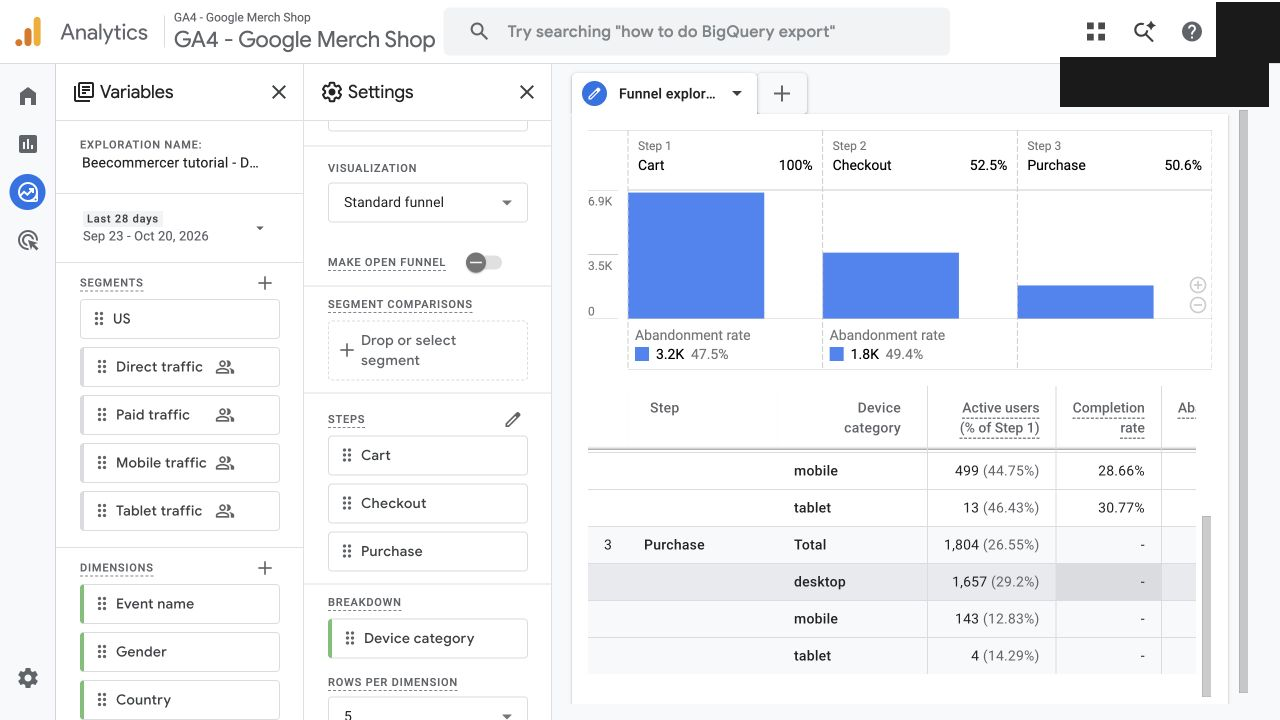
Keep the same dates, steps and entry rule. Read the native Total rows, then scroll the results table to the Purchase rows. The following two captures together show the relevant counts.
| Comparison | Calculation | Result |
|---|---|---|
| Cart → Checkout | 3,567 ÷ 6,795 | 52.49% |
| Checkout → Purchase | 1,804 ÷ 3,567 | 50.57% |
| Cart → Purchase | 1,804 ÷ 6,795 | 26.55% |
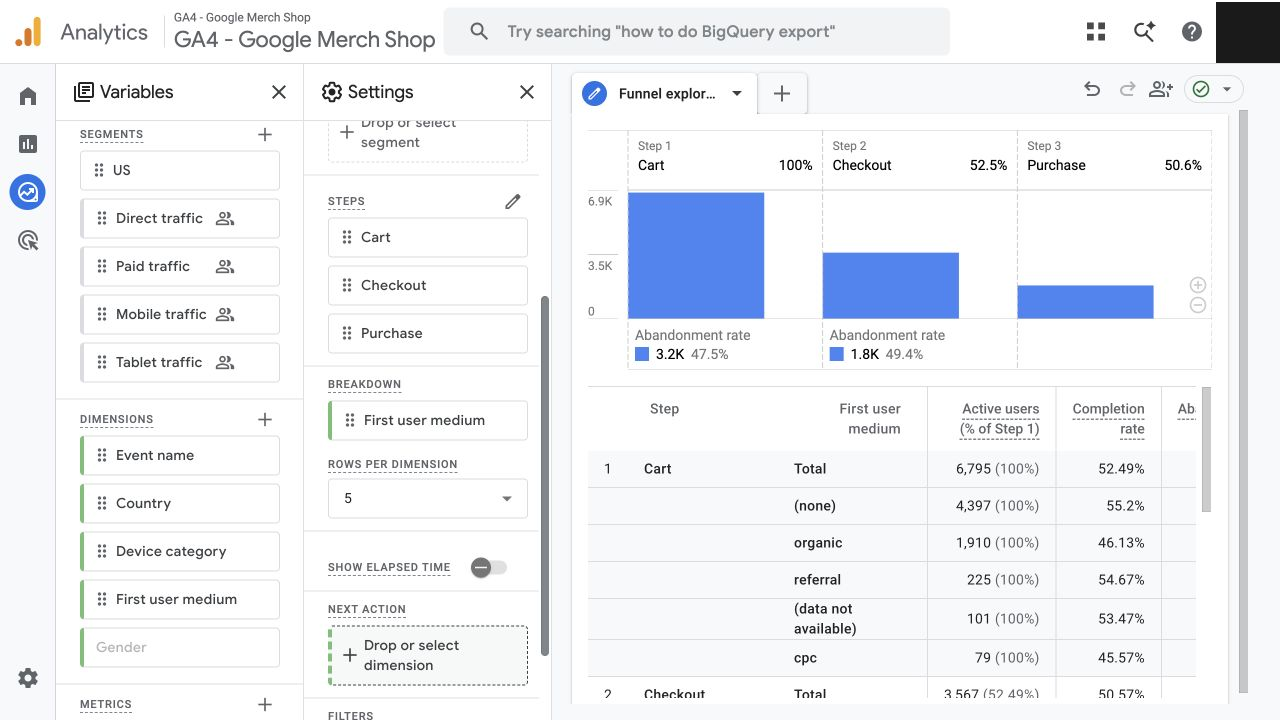
The supplied example has 6,795 Cart users → 3,567 Checkout users → 1,804 Purchase users. The final 26.55% is relative to cart entrants. Funnel results count users reaching steps; they are not transaction counts, revenue, event totals or an all-site purchase conversion rate. A user can place more than one order.
| Device group | Checkout users | Purchase users | Completion |
|---|---|---|---|
| Mobile | 499 | 143 | 28.66% |
| Desktop | 3,055 | 1,657 | 54.24% |
The difference is 25.58 percentage points. In the mobile group, 499 − 143 = 356 measured users did not reach the defined purchase step. These are not 356 proven lost orders or a guaranteed recovery opportunity.
A breakdown assigns a user to the first qualifying breakdown value. Someone who enters on mobile and later completes on desktop may remain in the mobile group. The table does not prove that every step happened on the same device, nor that device caused the difference. Audience mix, destination, products, payment options and measurement can all differ.
The captured Cart device rows sum to 6,817, while the native Cart Total is 6,795. Preserve the reported Total and describe this discrepancy; do not change the source values to force reconciliation or build an order-loss forecast from their sum.
5. Add a second funnel for checkout completion
The three-step funnel answers: “What happens after a measured cart addition?” It can exclude legitimate buyers who use Buy now, accelerated checkout or another path that skips add_to_cart.
Duplicate the exploration or create another tab. Define a separate closed funnel with begin_checkout → purchase, allow indirect succession, and record the same dates, time settings, filters and segments. This is an additional setup to build in your own property; it is not shown in the supplied screenshots.
| Funnel | Starting population | Use it to investigate |
|---|---|---|
| add_to_cart → begin_checkout → purchase | Measured cart entrants | Cart-to-checkout and later completion along that path. |
| begin_checkout → purchase | Measured checkout starters | Completion without requiring a cart-add event first. |
Use the second funnel’s checkout users as its own starting count. Do not copy the three-step funnel’s counts into it: removing the cart requirement can change who qualifies. Its result is still a user-sequence measure, not a checkout-attempt or order-level ledger.
6. Add shipping and payment steps only when valid
To investigate a specific checkout route, you can build begin_checkout → add_shipping_info → add_payment_info → purchase. First verify that the additional events are collected when the intended actions occur. A report condition cannot recover an event that was never sent.
Check the route before making either event mandatory. Digital goods may not need shipping, and an accelerated payment flow may bypass an ordinary payment-details screen. Analyze materially different routes separately; otherwise the longer funnel may classify valid purchasers as missing a required step.
Keep the short baseline beside the detailed route. Document the event trigger, relevant products or routes, entry rule and elapsed-time limit for each version. If you need a truly session-bound or order-bound investigation, define and validate a suitable session or checkout identifier in a separate analysis instead of relabeling the exploration as an order funnel.
7. Choose a compatible dimension with the right scope
Click the plus beside Dimensions and inspect the choices available with your current technique and configuration. In the supplied capture, Session source / medium is disabled. That is a fact about this captured picker, not a universal rule that GA4 funnels never support session-source fields.
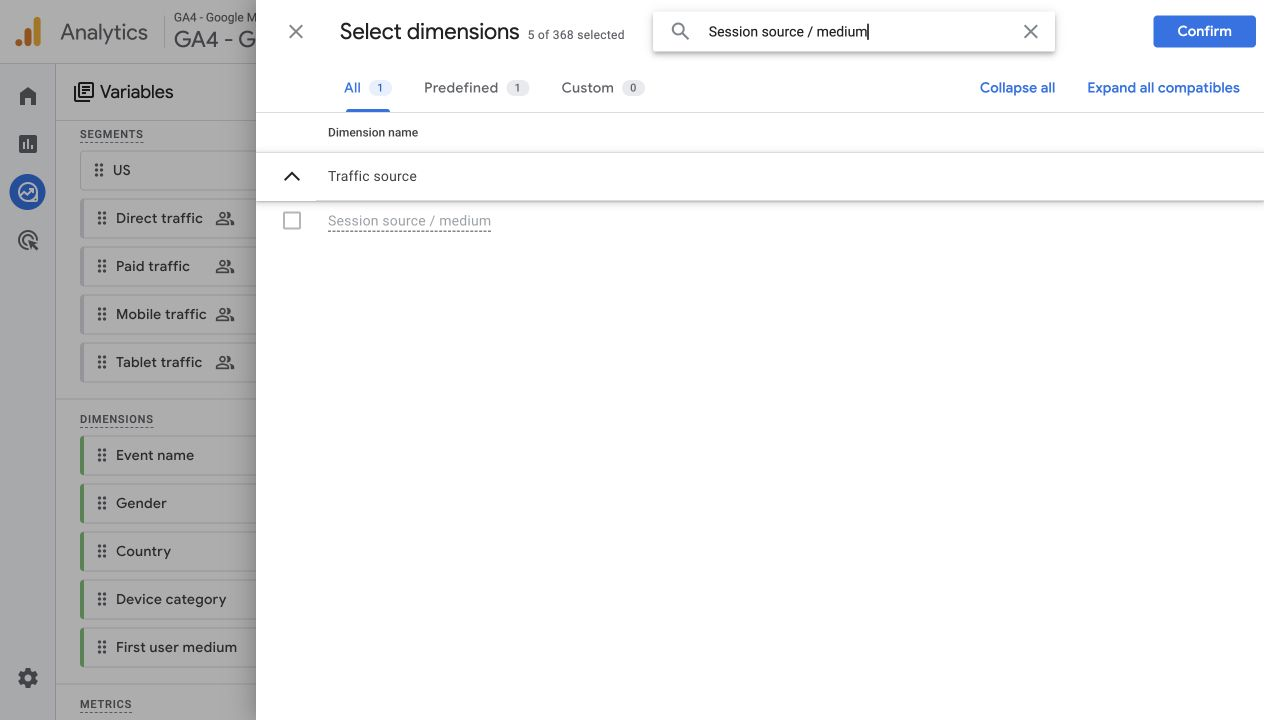
The example instead applies First user medium to Breakdown. The available values include none, organic, referral and cpc. This groups users by the medium that originally acquired them; it does not identify the campaign that brought the checkout visit.
| Field or report | Question it can answer | Do not substitute it for |
|---|---|---|
| Device category in the funnel | How completion differs between the defined device groups. | A full cross-device journey or evidence of a device-caused defect. |
| First user medium | Which initial acquisition groups complete the defined path. | The source or campaign of a particular checkout session. |
| Compatible session acquisition report | Where measured sessions originated, using that report’s definitions. | The funnel’s user counts or an order-by-order attribution ledger. |
If session acquisition is the question, use Traffic acquisition or another compatible session-scoped analysis and keep its definition separate. Google explains first-user and session traffic-source scopes. Check the picker before prescribing a dimension, then confirm that it is actually applied to Breakdown.
8. Turn an observed gap into a concrete investigation
Start with the observation: “For this period and definition, mobile-group checkout completion is 28.66%, versus 54.24% for desktop.” Then gather evidence for possible causes. Do not write “the mobile payment form is broken” until a relevant failure has been reproduced.
| What you observe | Evidence to collect | Next action |
|---|---|---|
| No users or an unexpectedly empty step | Property, dates, event names, filters, segments and required sequence. | Check setup, then test whether the intended events actually arrive. |
| Orders exist but purchases are missing in GA4 | Test order record, received events, transaction ID, consent state and duplicate collection paths. | Repair confirmed tracking problems; do not call every missing event a failed order. |
| Lower completion in one device group | Comparable market, product, browser, payment and traffic mixes; a reproduced customer journey. | Test the relevant routes before changing checkout or reallocating traffic. |
| Delivery or payment errors on a route | Supported destination, shipping option, payment choice, displayed fees and the actual error. | Give the ecommerce owner a reproducible case and retest after the fix. |
| A change appears after a promotion or release | Comparable periods, promotion terms, site changes and measured audience mix. | Separate changes in visitors from changes in checkout behaviour. |
For a controlled check, choose a relevant product and variant, reproduce the route on the affected browser and destination, and use an approved test-payment method or test environment. Record cart addition, checkout start, any optional shipping/payment events and the final purchase, then compare the sequence and purchase parameters with the store’s order record. Keep personal and payment details out of screenshots.
Also inspect the exploration’s data-quality indicator for sampling, thresholds or other limitations. Check data retention if an older exploration range is unavailable: standard aggregated reports and exploration data do not always have the same historical availability, and extending retention does not restore already-deleted data.
When orders and analytics disagree, first compare like with like. A store records business orders, GA4 records received purchase events, and an attribution report assigns credit under its own rules. The GA4–Shopify reconciliation tutorial walks through time zones, revenue definitions and transaction checks. Match those definitions before interpreting the difference as lost revenue.
9. Record the findings and plan the review
Download the checkout-funnel investigation worksheet (CSV). Its English column headings can be used in Excel or Google Sheets. It contains the demonstrated device-group figures and a blank investigation row; the example figures are practice evidence, not targets.
- Save the property, date range, time zone, steps, entry rule and any elapsed-time limit.
- Record the segments, filters, breakdown and source screenshots actually used.
- Write the user counts and the starting step behind each percentage.
- Separate the observed gap from the possible cause and the evidence still missing.
- Assign an owner, proposed action, review date and the measurement needed after the change.
Change one clearly defined issue, verify the event implementation again, and review a comparable period once enough measured activity is available. An improvement after a change is useful monitoring evidence; a causal claim needs an appropriate controlled experiment.
Frequently asked questions
What is a good checkout completion rate?
Use a validated baseline from your own comparable checkout routes and visitor groups. The Demo’s 28.66% and 54.24% are not recommended targets or industry benchmarks.
Why is this lower than the purchase report?
A closed funnel requires its starting step and sequence. Purchasers outside that path may still appear in other reports. Also compare users with users: one purchaser can generate several orders or purchase events.
Should I make the funnel open?
Use a closed funnel to measure completion from a defined starting milestone. Use an open funnel when entry at later steps is part of the question, and label that choice clearly. Keep the choice consistent when comparing results.
Why can I not export the Demo exploration?
The official Demo account limits exports and Data API access. Use it to learn the method, then recreate the setup in an authorized property with the permissions needed for your work.
Can I conclude that the payment page is causing the gap?
No. The funnel identifies a measured difference. Reproduce the route, inspect the events and operational records, and check visitor mix before assigning a cause. Missing tracking and legitimate alternative checkout routes can also change the result.