
Last updated on October 21, 2026 at 4:40 PM
A search-term audit should produce a short list of justified decisions: keep a query, investigate its intent, improve its landing page, or propose an exclusion. This guide takes you from the report to a reviewed action register, with match type and scope checked before any change is saved.
What you will finish: a dated export and an action register with the query, reason, match type, scope, owner, and review date. The interface illustrations show separate teaching states rather than one continuous account session. All account names, queries, costs, purchases, and values are fictitious examples, not Beecommercer advertising results. Sort indicators, matching labels, available controls, and navigation may differ in your account; use your live report as the source of truth. The exercise and downloadable worksheet use the same example values.
Step 1 Open the Search terms report
- Select the intended Google Ads account.
- Open Campaigns → Insights and reports → Search terms. In accounts with a different navigation layout, use the account search to locate Search terms.
- Read the current date and filter chips before evaluating any query.
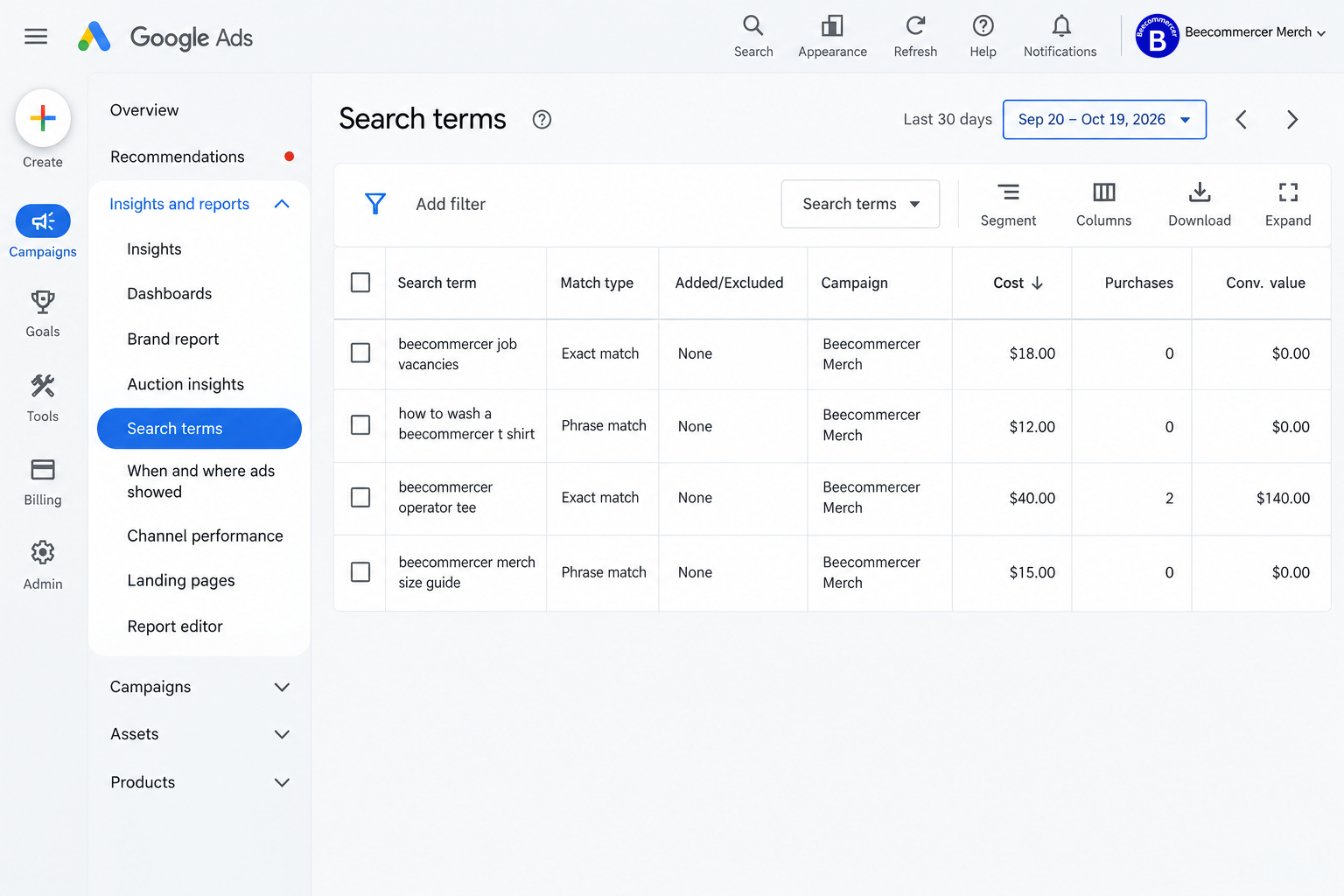
The report illustration contains four merchandise queries used in the exercise below. Read intent before performance: a recruitment query needs a different decision from a product query or size-guide request. In your own export, a misspelled brand query can still represent a relevant shopper. Do not exclude it simply because it looks untidy.
Step 2 Restrict the review to the intended campaign type
- Use the available Campaign type filter or top-level view selector to restrict the report to Search. Where available, open Add filter and choose Campaign type under Attributes.
- Check Search.
- Click Apply, then close the filter panel to inspect the table.
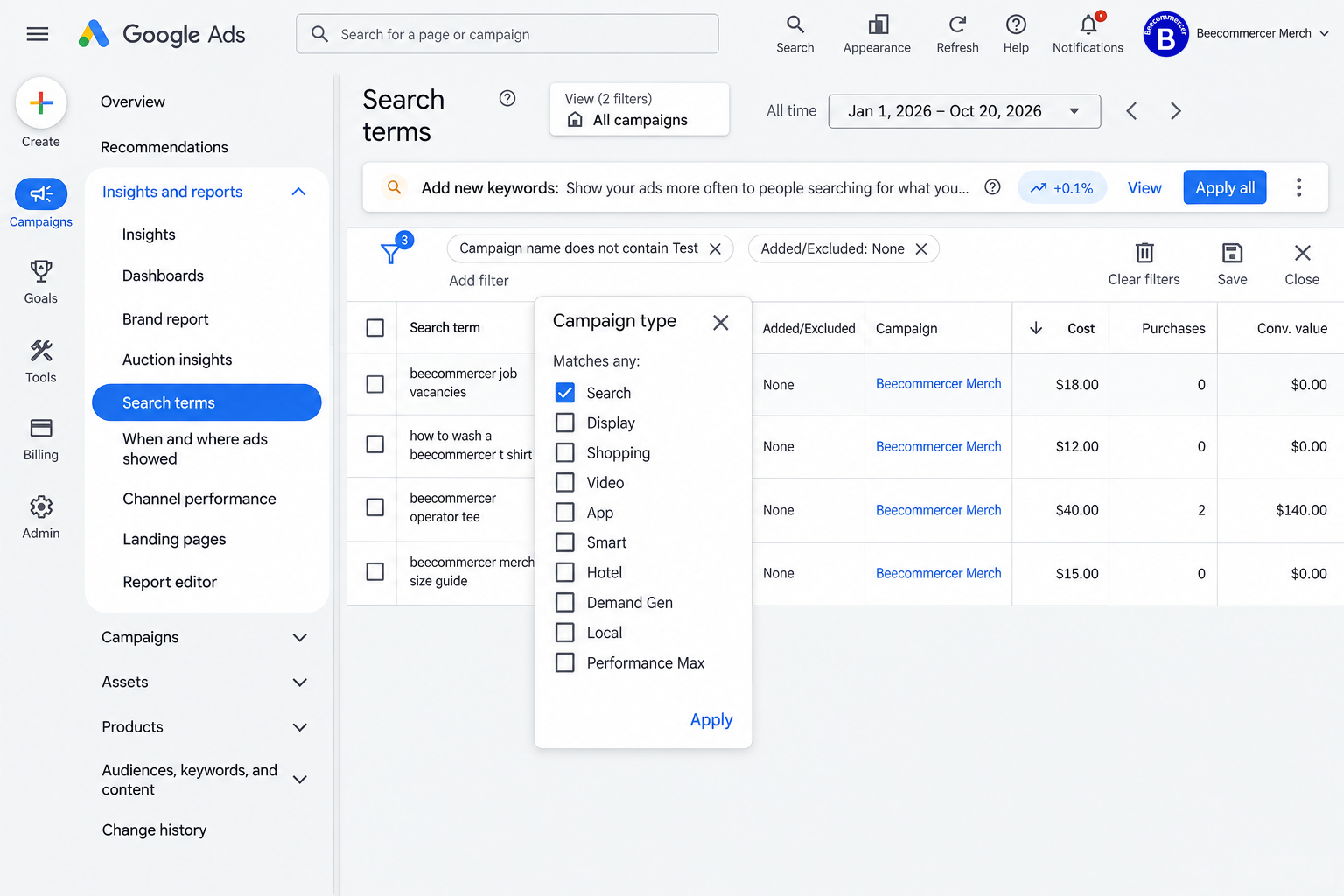
The illustration shows the selection dialog before Apply; the table behind it represents an earlier scope. Inspect any campaign-name and Added/Excluded filters in your own account. A campaign-name filter excluding Test is only an example naming convention, not a required setting. Where available, Added/Excluded set to None focuses on queries not already added or excluded; it does not show the account's entire search history.
Step 3 Choose a completed reporting window
- Open the date picker at the top right.
- Select Last 30 days, or enter a closed custom period appropriate for the purchase cycle.
- Confirm the resulting dates on the report and record the account time zone.
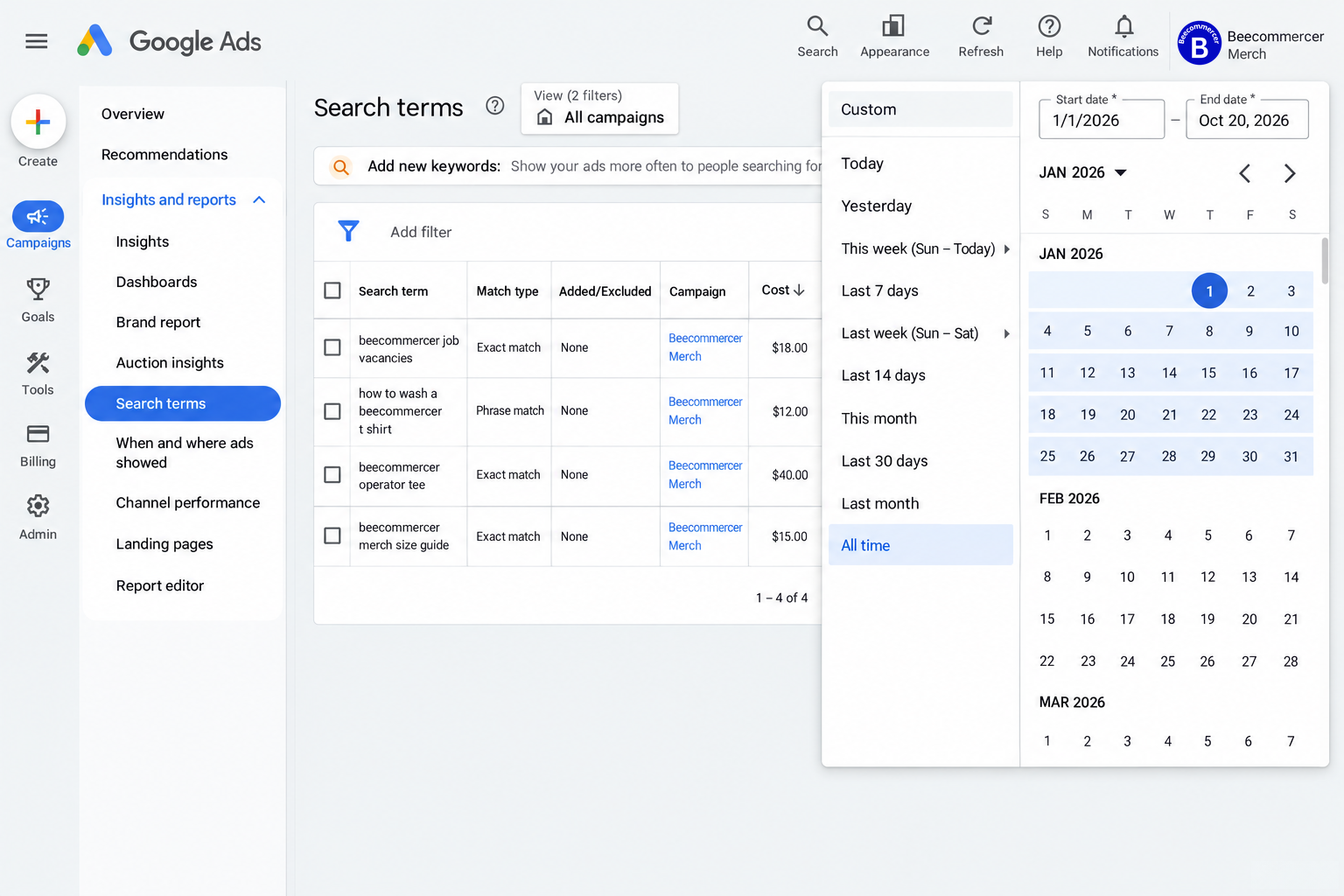
The date-picker illustration shows available presets before the change. The report uses September 20–October 19, 2026 as an illustrative closed custom 30-day period, rather than the All time period in the earlier state. These dates do not represent a rolling Last 30 days selection on the publication date. Use dates appropriate to your review and allow delayed conversions a reasonable chance to arrive.
Step 4 Inspect the columns and conversion definition
- Click Columns → Modify columns.
- Open Conversions. Inspect Conversions, Cost / conv., Conv. value, and Conv. value / cost.
- Under Performance and Attributes, include the fields required for your audit, such as clicks, cost, matched keyword, match type, campaign, and ad group.
- Use Apply if you intend to change this view. Choose Cancel after inspection if you want to leave the current configuration unchanged.
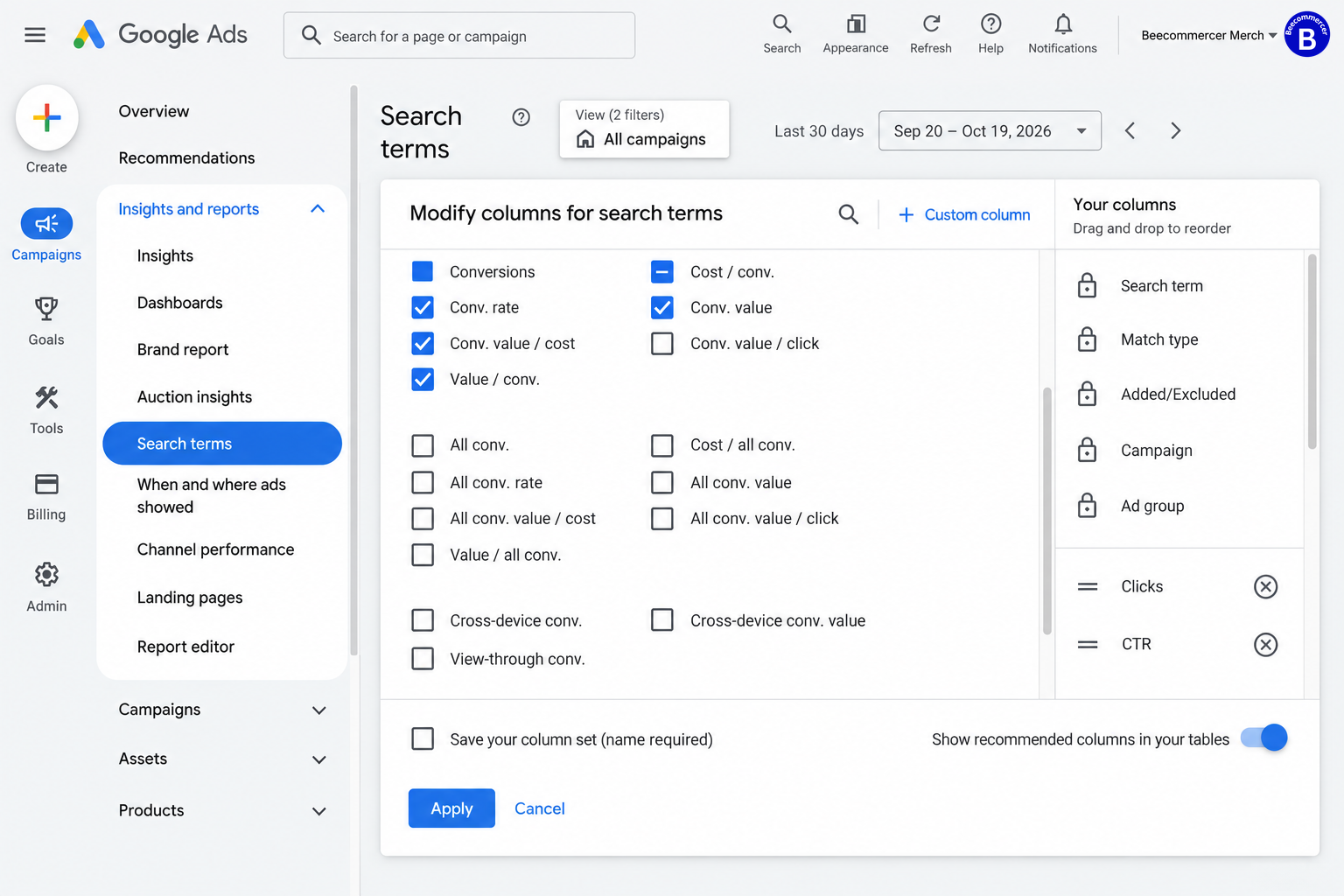
The illustrations use Purchases as a purchase-only teaching column label. In your live account, verify the purchase conversion action and, if needed, configure a custom column filtered to that action.
Check which conversion actions populate the columns before treating them as purchases. A report counting newsletter signups and sales together needs a different interpretation. The search-term match type describes the query's relationship with its matched keyword; it may differ from the keyword's configured match type. Some low-volume queries are withheld for privacy, so this report is a partial view of activity.
Step 5 Download a working copy
- Click the Download icon above the table.
- Choose .csv or .xlsx for your spreadsheet workflow.
- Keep the original export unchanged. Add decisions to a separate working sheet.
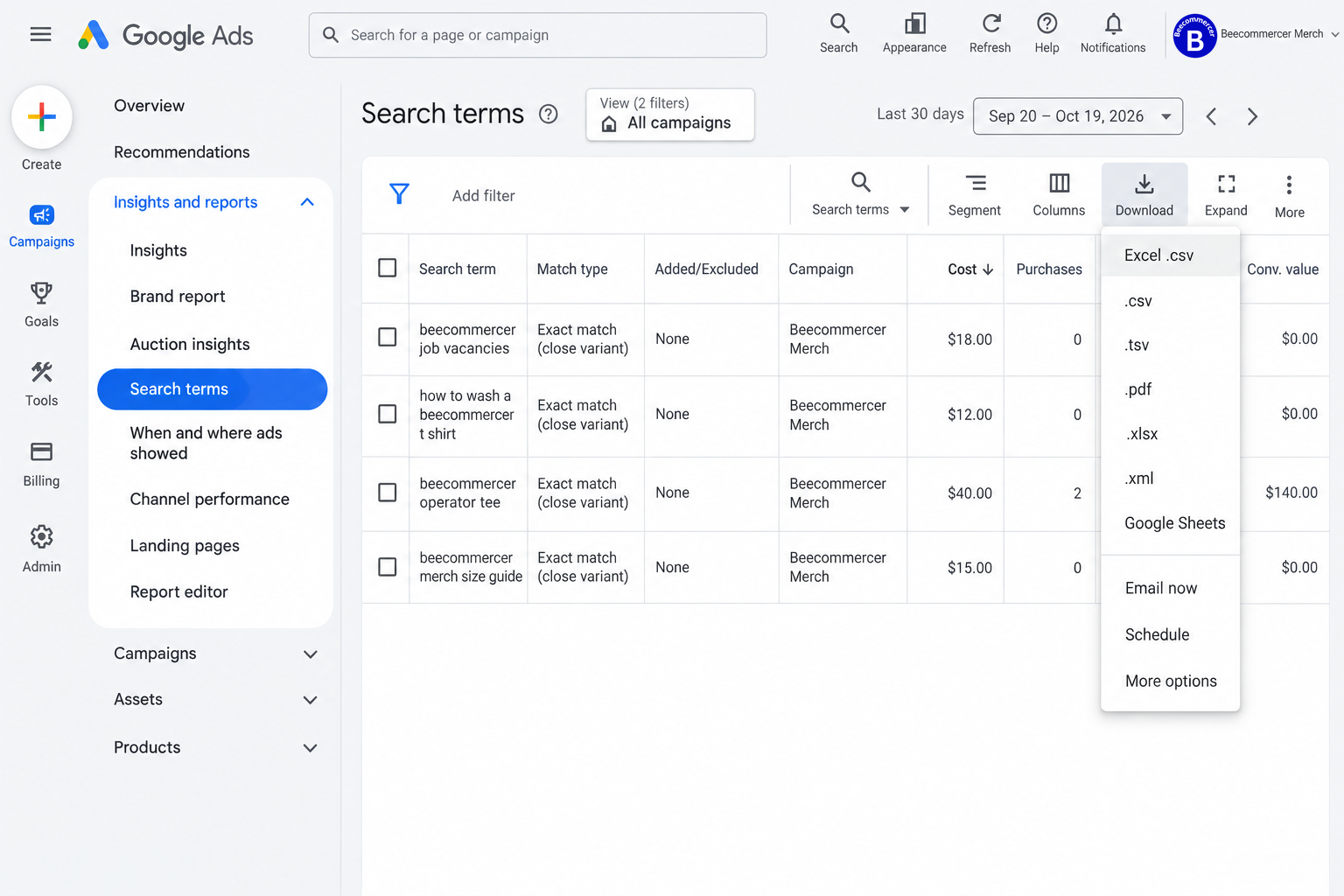
The illustration identifies the Download options to use. Keep your own advertising export private. The supplied template contains the four explicitly synthetic merch rows used in this teaching exercise.
Step 6 Classify relevance before touching the exclusion controls
Read each query beside the catalog and landing page. Assign one action: observe; consider a positive keyword; propose a negative; or repair the ad or destination. “Zero purchases” is an observation. “This merch campaign sells clothing and does not serve recruitment queries” is an exclusion reason.
A clearly irrelevant intent can justify a precise exclusion without waiting for an arbitrary spend threshold. For a relevant query, consider sample size, conversion delay, margins, and the landing page. A review flag at one or two times an acceptable acquisition cost is only a prioritization heuristic, not statistical proof.
Step 7 Review match type and scope before saving
- Select the checkbox beside one reviewed query.
- Click Add as negative keyword.
- Inspect Ad group, Campaign, and Negative keyword list.
- Inspect the Keyword field. The illustrated review field uses negative exact syntax in square brackets, matching the checked UI workflow.
- Save only a justified exclusion after review. For this demonstration, click Cancel.
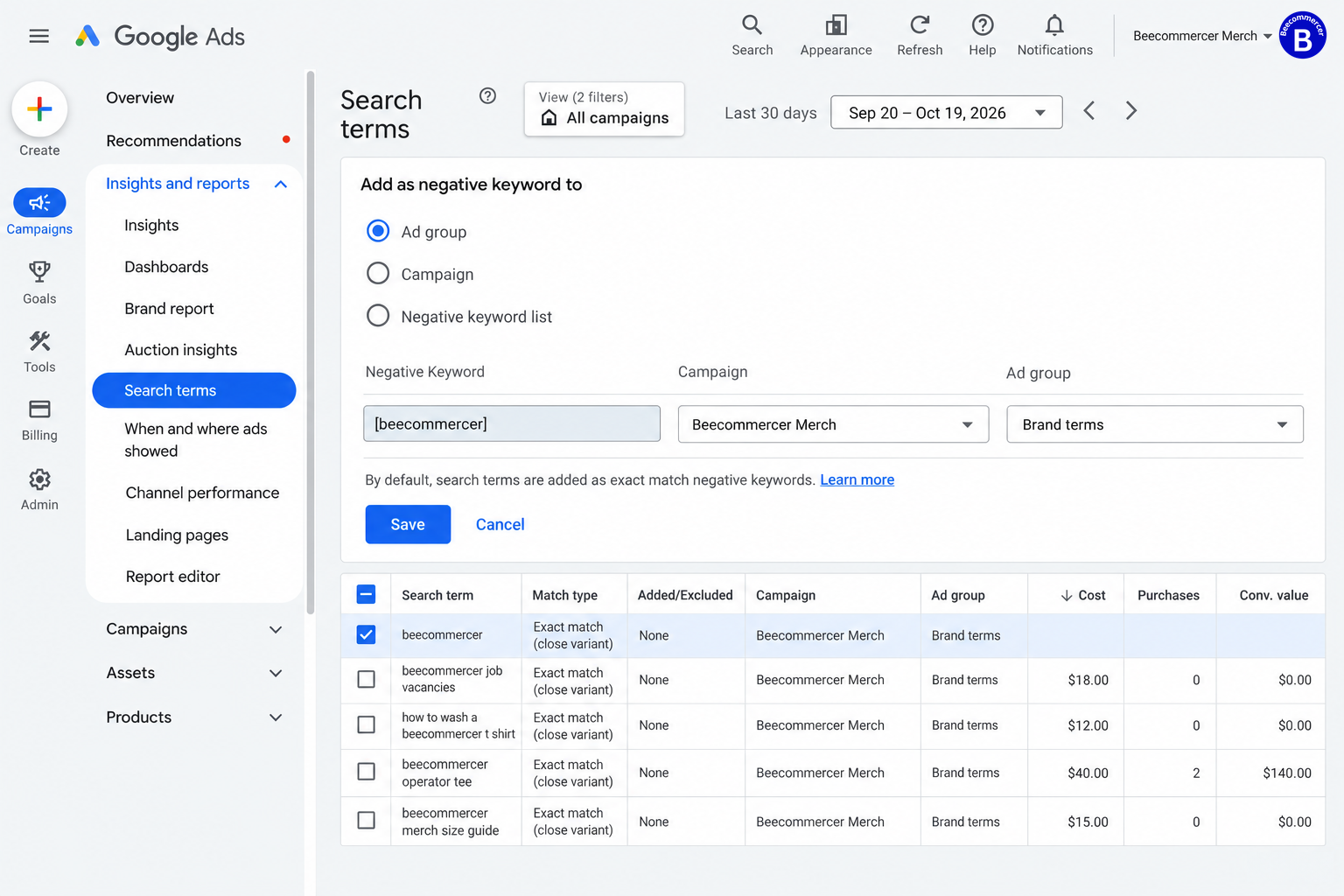
The selected brand term [beecommercer] demonstrates the controls; it is not a recommended negative. It is relevant to this merchandise example. Choose Cancel after reviewing the demonstration. The form does not represent a real exclusion or Beecommercer advertising activity. Reaching Save is not a reason to use it.
For Search campaigns, negative exact blocks searches containing the exact terms in the same order without extra words. Negative phrase blocks the ordered phrase, including within a longer query. Negative broad blocks searches containing all excluded terms, even in a different order. Negative keywords do not expand to synonyms or singular/plural forms in the way positive keywords can. Google handles casing and misspellings, but review relevant word variants separately. Use ad-group scope for routing between offers, campaign scope for an intent inappropriate to that campaign, and a shared list only when the exclusion applies to every campaign attached to it. Check the current Google Help rules before uploading.
Practice with a clearly labeled Beecommercer merch example
For this teaching exercise, assume a Beecommercer merch campaign with a $25 acceptable purchase acquisition cost and checked purchase tracking. All costs, purchases, and values below are synthetic; they are not actual Beecommercer advertising results. The $140 value is total value across two illustrative multi-item orders, not a shirt unit price.
Worked example with illustrative data
Illustrative example; these figures are synthetic teaching data, not actual advertising results.
| Search term | Cost | Purchases | Value | Decision |
|---|---|---|---|---|
| beecommercer job vacancies | $18 | 0 | $0 | Negative exact; campaign |
| how to wash a beecommercer t shirt | $12 | 0 | $0 | Review educational intent |
| beecommercer operator tee | $40 | 2 | $140 | Consider keyword / destination |
| beecommercer merch size guide | $15 | 0 | $0 | Add sizing detail; observe |
“Beecommercer job vacancies” spends $18 without a purchase and has recruitment intent outside this merch campaign: propose the complete query as a campaign-level negative exact. This does not justify excluding “beecommercer” itself. “How to wash a beecommercer t shirt” needs an intent and content decision; do not automatically block the brand or product words.
“Beecommercer operator tee” spends a synthetic $40 and records two illustrative multi-item orders with a combined value of $140: CPA is $40 ÷ 2 = $20 and ROAS is $140 ÷ $40 = 3.5. Consider whether a dedicated keyword or destination would improve control, without promising extra traffic. “Beecommercer merch size guide” may reveal missing sizing information on a relevant product page. Assign a size-guide update and keep observing. These are practice decisions, not claims about actual Beecommercer performance or product pricing.
Record the change and review it
Use the downloadable worksheet as a starting point. Record proposed wording, match type, scope, reason, owner, and review date; add an implementation-date column when applying changes. Check proposed negatives against product names and historical converting queries. At the next review, look for accidental restrictions and whether useful demand was preserved. A reduction in spend alone does not demonstrate an improvement.
Frequently asked questions
Should every non-converting query become a negative?
No. First check intent, sample size, conversion delay, measurement, and the destination.
Can I reuse this process for every campaign type?
This guide focuses on Search campaigns. Check the supported reporting and exclusion controls separately for other campaign types.
Companion worksheet
Download the search-term audit worksheet and replace the example inputs with verified account data. Keep your original advertising export private. The four example rows are for practice only.