

This tutorial takes you from an existing Merchant Center product to a maintained custom-label system. You will inspect the current fields, choose an update method, build a Google Sheets supplemental source, and use the resulting values in Standard Shopping and Performance Max. Start with a small test set and keep the original labels until you have checked their campaign dependencies.
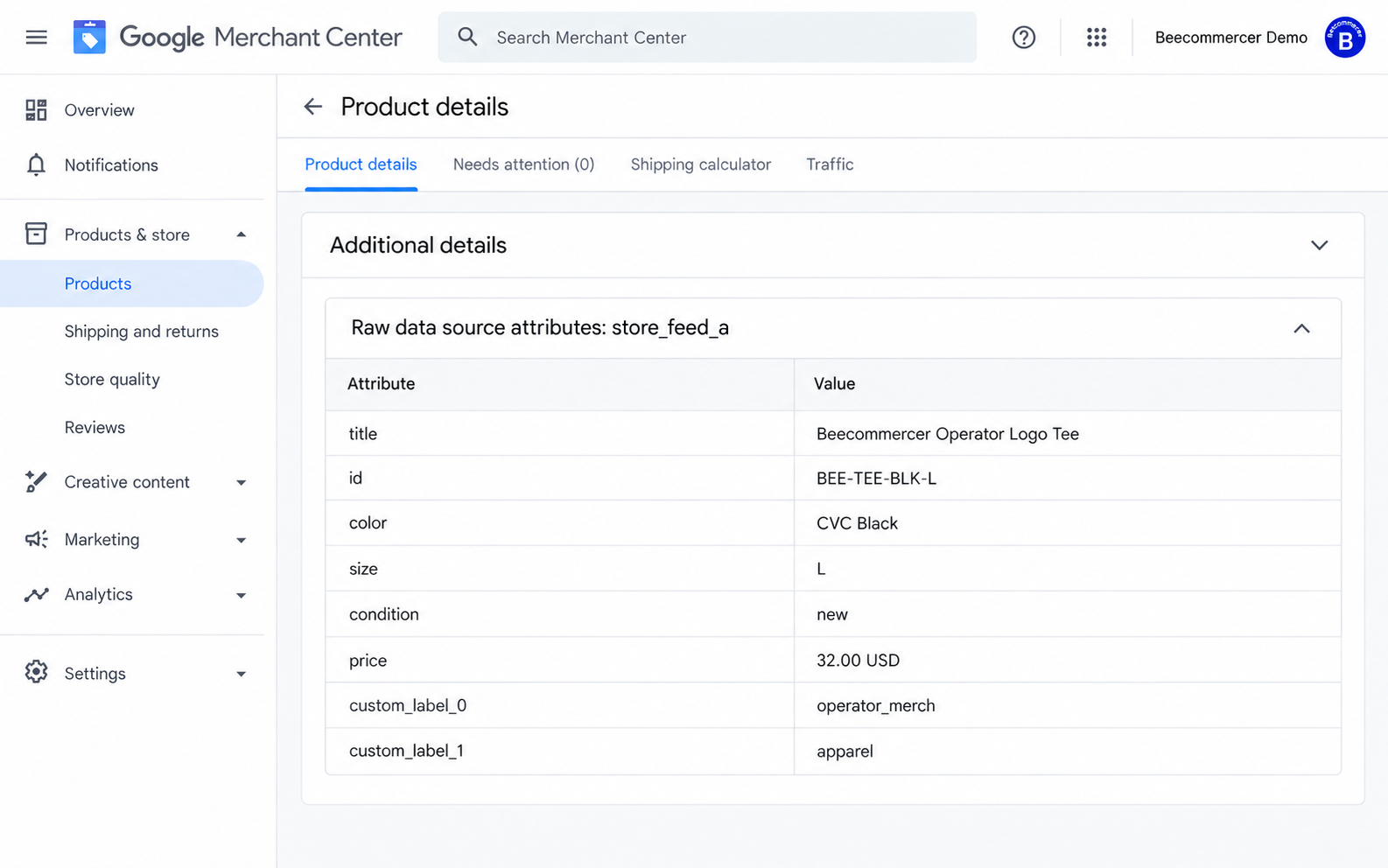
The five interface figures are teaching illustrations, not records of an actual merchant account. The Beecommercer tee, product ID, source name, prices and costs are illustrative. The final figure shows an unsaved proposal. Menu names can vary by account; the written procedures explain how to complete and verify your own changes.
1 Define the five fields before editing products
Custom labels are internal product attributes, numbered custom_label_0 through custom_label_4. They help group products for advertising and reporting; customers do not see them in your ads. Each field accepts one value per product. Values can contain 1–100 characters, with up to 1,000 distinct values per field across the account. Google treats values as case-insensitive. Use a short, consistent dictionary rather than a unique value for every SKU.
Do not confuse a campaign’s feed or data source label with a custom label. The former selects a product-source scope; the latter describes a product-level business grouping. A source name such as store_feed_a is also not automatically its feed label. Read the source settings. Product category and product_type have separate purposes and should not be overwritten to make room for a margin tier.
| Attribute | Purpose in this example | Example values |
|---|---|---|
custom_label_0 | Merchandise role, already in use | operator_merch |
custom_label_1 | Department, already in use | apparel |
custom_label_2 | Contribution before advertising | margin_high, margin_mid, margin_low, margin_review |
custom_label_3 | Advertised price band | price_under_30, price_30_to_under_60, price_60_plus, price_review |
custom_label_4 | Stock review band | stock_out, stock_low, stock_ok, stock_review |
This is a teaching dictionary, not a required Google mapping. Reserve a field only after checking the entire catalog, current campaigns and the responsible owner. Renaming a label category in the interface does not change the underlying attribute number. See the custom-label specification for format limits.
2 Inspect the product ID and the source that owns it
- Open Merchant Center → Products & store → Products → All products. If your navigation differs, locate Products using the account search.
- Find a test item by its submitted product ID. Record its language, feed label and primary source. Do not substitute a parent
item_group_id, a title or a storefront SKU unless it is exactly the submittedid. - Open the product and inspect its selected variant, price, availability and current labels.
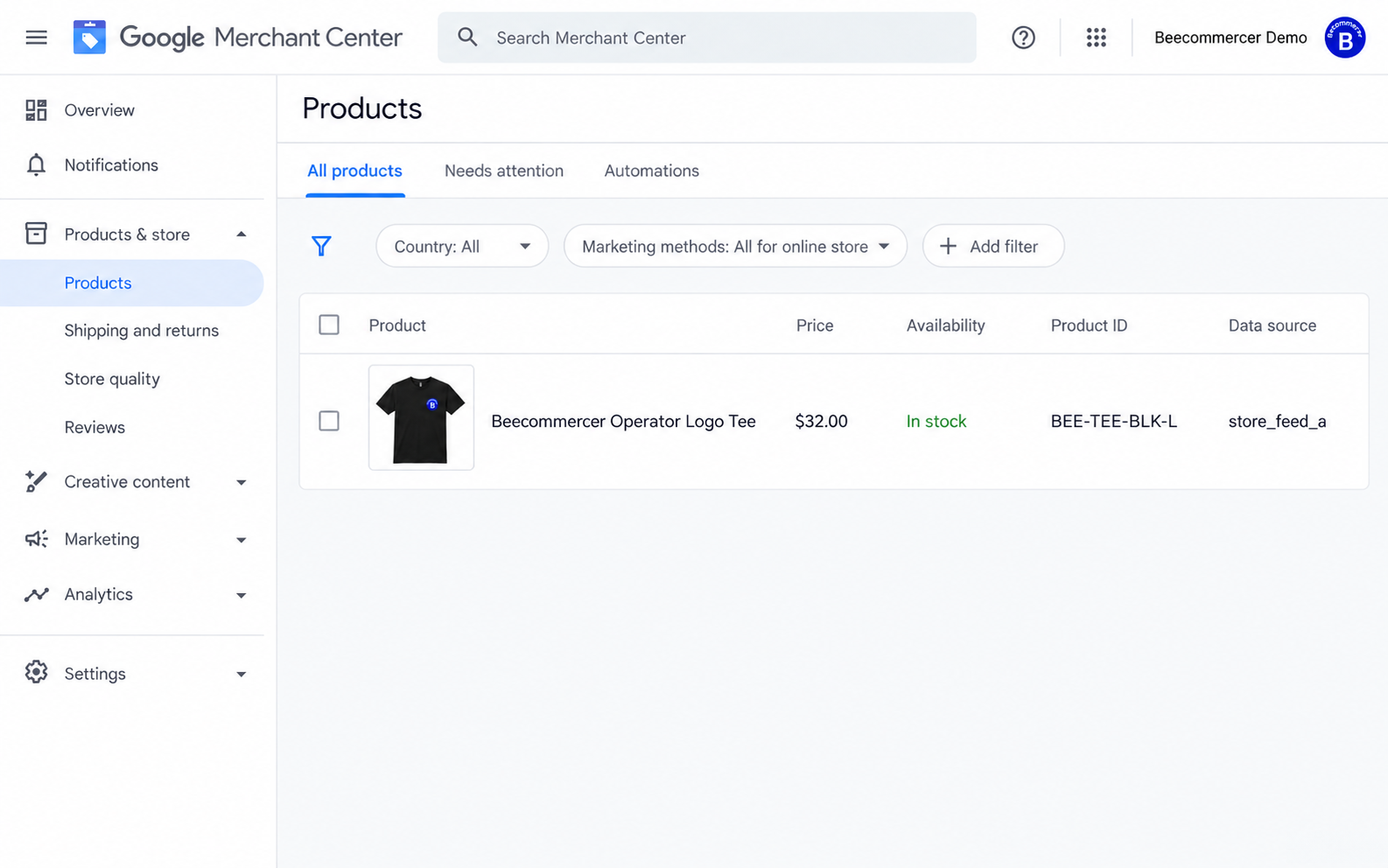
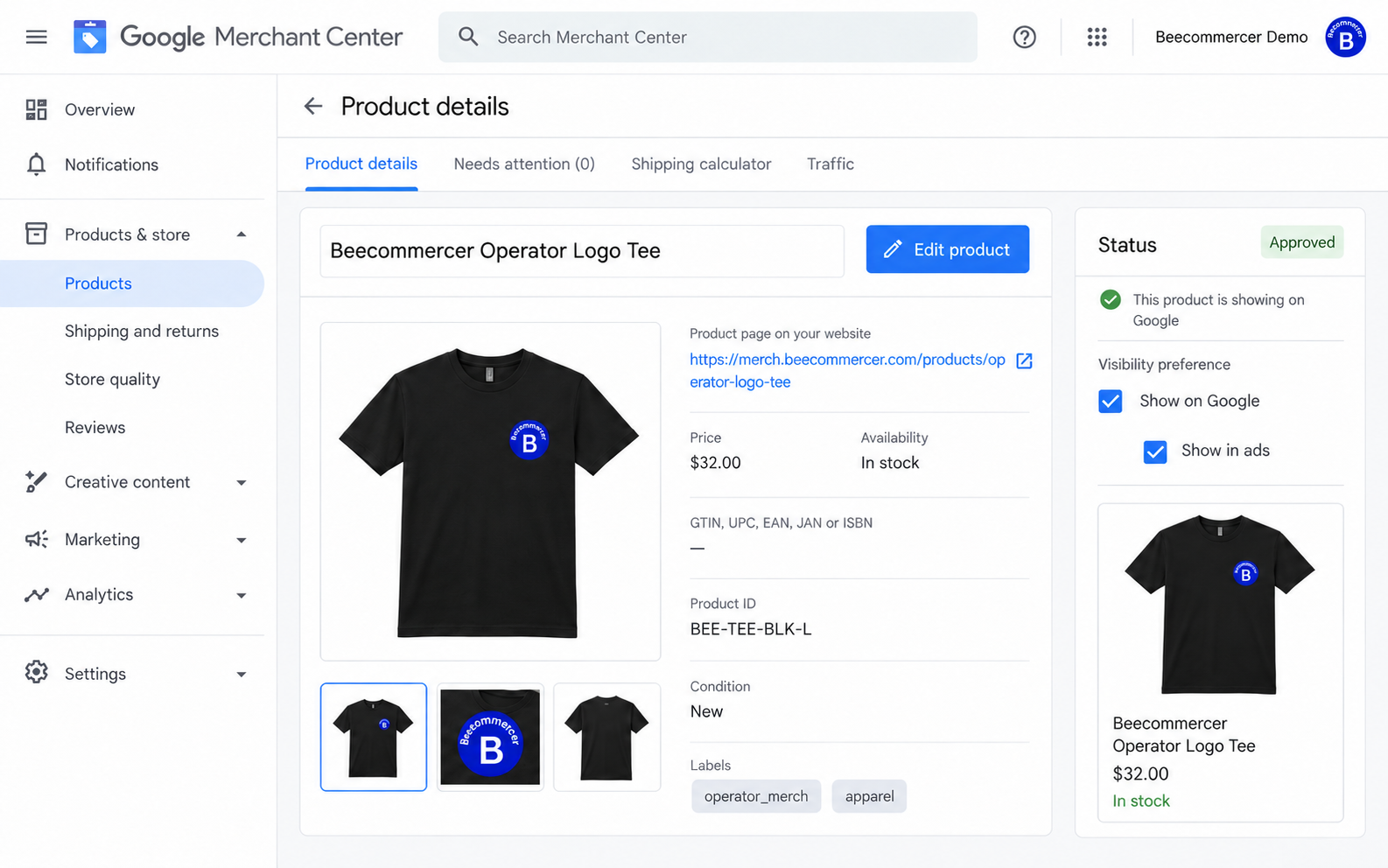
Expand Additional details and Raw data source attributes where available. Compare submitted attributes with the processed product view. In the example, custom_label_0=operator_merch and custom_label_1=apparel. Keep those meanings when adding another classification. An approval badge does not prove that a margin classification is correct.
If you have not set up a product source, begin with the Merchant Center setup tutorial. The label-only methods below assume the products already exist.
3 Choose one maintained update method
| Your situation | Use this method | What to check |
|---|---|---|
| A few exceptional products | Manual editor or Labels column | Manual overrides and the person maintaining them |
| You own the existing primary sheet or file | Add label columns there | Preserve the complete product source and required fields |
| Products come from a store connector or another team | Google Sheets supplemental source | Exact product identity and the selected primary source |
| You have an exported label file | TSV supplemental upload or scheduled retrieval | Encoding, headers, source access and refresh schedule |
| The condition uses attributes Merchant Center already receives | Attribute rules | Rule order, default behavior and preview results |
| You need frequent catalog-wide updates | Store integration, feed tool or Merchant API | Field mapping, source ownership and monitoring |
A supplemental source enriches products from an existing primary source. It cannot create or delete products or replace a complete primary catalog. Avoid adding a second, label-only primary source for products already supplied by a store integration.
4 Method 1 Make a small manual update
- Open the chosen product and select Edit product. Locate Labels and confirm the occupied fields.
- Choose the intended empty field. Enter an approved value, then select its Add action or the existing value so it becomes selected.
- Save the product. In accounts using the Labels column editor, enable that column with Modify columns → Labels → Apply, use the row’s pencil control, and finish with Apply.
- Reopen the item and check the final numbered attribute and value. Record the change and its owner.
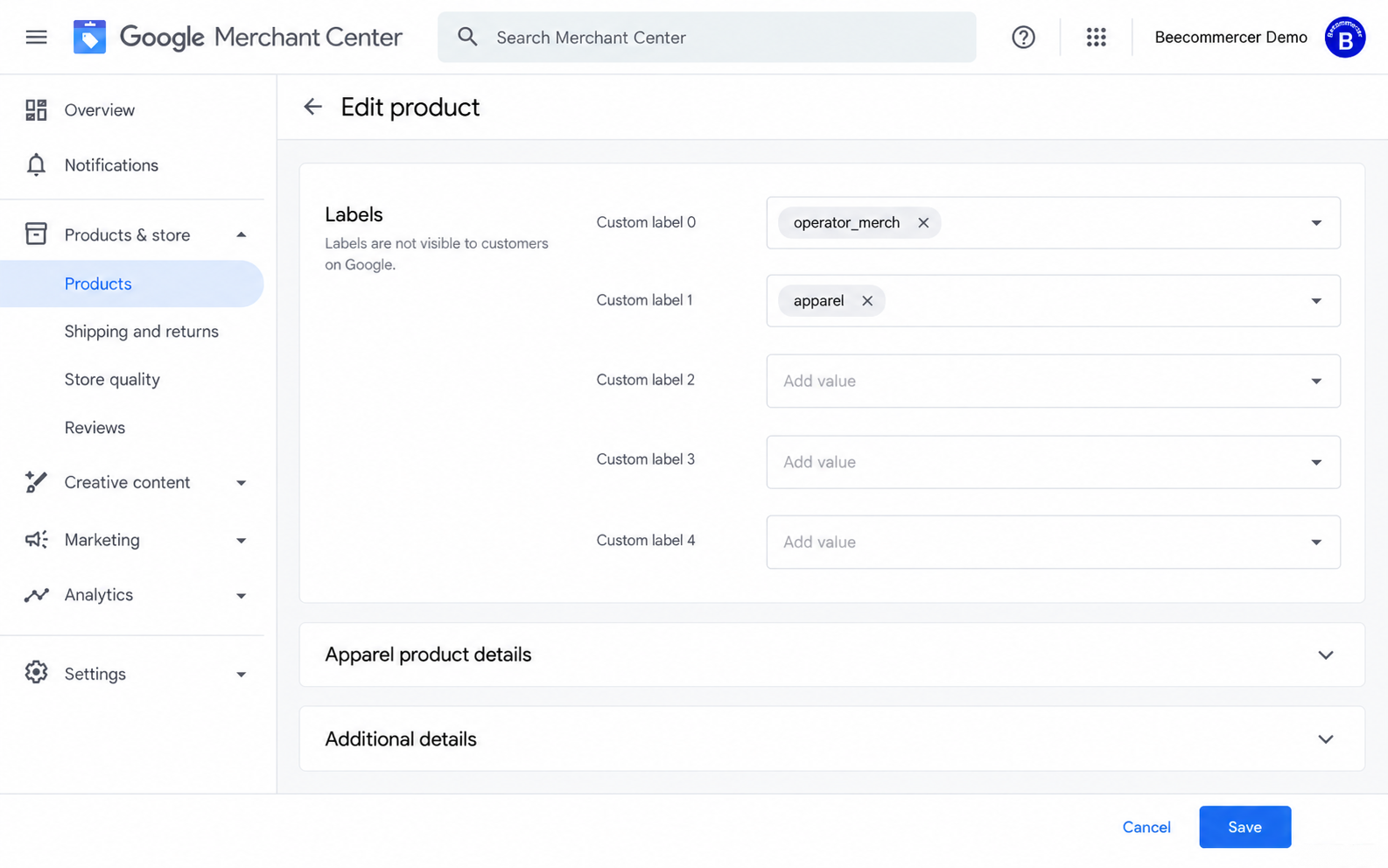
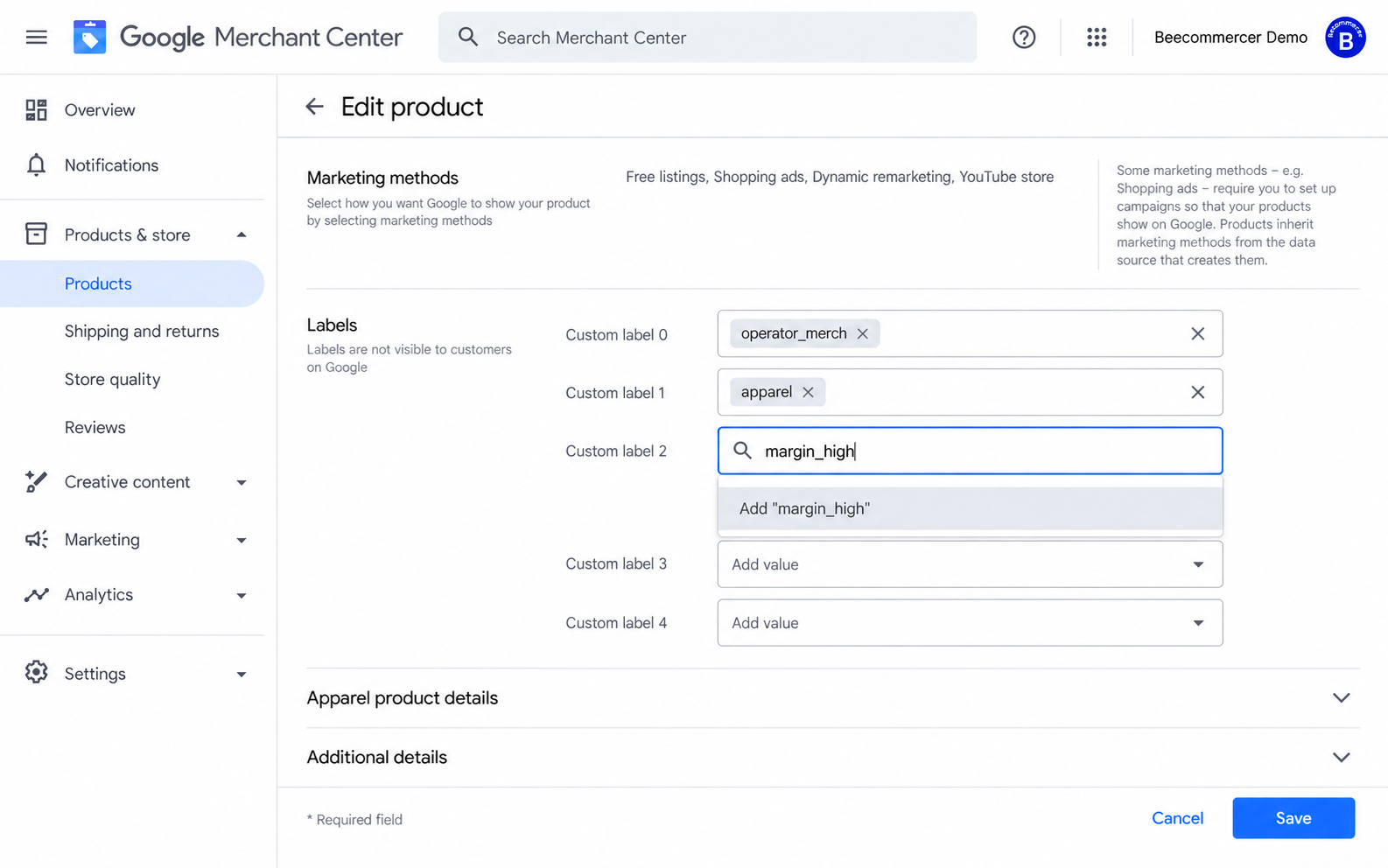
The last figure does not demonstrate a completed update. For an inspection-only exercise, choose Cancel. For an approved production change, select the justified value and finish the appropriate Save or Apply action. The example arithmetic below produces margin_mid, so it does not justify saving margin_high.
Manual product-editor changes can take priority over values supplied by other methods. Do not assume the next feed refresh will overwrite them. If a source update appears ineffective, inspect the item’s manual override and its edit/revert controls. Coordinate one maintained source for each field. Google’s quick-edit guidance explains this precedence.
5 Method 2 Add labels to the existing primary source
- Open Settings → Data sources and identify the primary source recorded in section 2.
- If it is a spreadsheet, add columns with exact English headers such as
custom_label_2. If it is a file, add the attributes in that file’s supported format. - Fill one value for each relevant product row. Keep the existing IDs and required catalog attributes intact.
- Save the source, return to Merchant Center, and use its Update control or the configured retrieval schedule.
- Check the processing result and the final values on several product details pages before extending the change.
For a new Google Sheets primary source, choose Add product source → Google Sheets and supply the full required product data, not just IDs and labels. If a store connector or API owns the primary source, edit its supported mapping or use a supplemental source instead. Google describes these choices in creating a product data source.
6 Method 3 Build a Google Sheets supplemental source
Prepare an input sheet with a repeatable business rule
Create a spreadsheet with two tabs named Inputs and Labels. Keep the tab names and machine headers exactly as shown so the formulas work. Format the ID column as plain text before pasting IDs; preserve leading zeros, case and punctuation. Export IDs from Merchant Center or the owning integration rather than constructing them from product names.
In Inputs!A1:E5, enter the following illustrative data. All amounts are numeric USD values in this exercise. Column B is the advertised price; column C is the net revenue basis used for contribution; column D combines product, payment, fulfillment, shipping-subsidy and expected-return costs before advertising. Use a consistent tax and discount basis. The cost assumptions are not actual Beecommercer economics.
| id | price_usd | net_revenue_usd | pre_ad_cost_usd | stock_units |
|---|---|---|---|---|
| BEE-TEE-BLK-L | 32 | 32 | 18 | 20 |
| DEMO-B | 80 | 80 | 32 | 3 |
| DEMO-C | 20 | 20 | 18 | 0 |
| DEMO-D | 45 | 45 |
Add headers contribution_rate, custom_label_2, custom_label_3 and custom_label_4 in F1:I1. Paste each formula in row 2, then copy it down through the populated rows. Do not paste currency symbols or thousands separators into the numeric inputs.
Calculate the contribution tier
In F2, calculate contribution before advertising divided by net revenue. Invalid or missing inputs return a blank result:
=IFERROR(IF(AND(ISNUMBER(C2),ISNUMBER(D2),C2>0,D2>=0),(C2-D2)/C2,""),"")In G2, classify that result. These illustrative thresholds define high as at least 45%, mid as at least 25% but below 45%, and low as below 25%. Missing results go to review:
=IF(ISNUMBER(F2),IF(F2>=0.45,"margin_high",IF(F2>=0.25,"margin_mid","margin_low")),"margin_review")The tee produces (32 − 18) ÷ 32 = 43.75%, so its result is margin_mid. This is contribution before advertising, not net profit or a forecast of profitable ad spend. Set your own approved thresholds and cost definition.
Calculate a price band and a stock review band
In H2, classify the submitted price. The middle interval includes 30 and excludes 60:
=IFERROR(IF(AND(ISNUMBER(B2),B2>0),IF(B2<30,"price_under_30",IF(B2<60,"price_30_to_under_60","price_60_plus")),"price_review"),"price_review")In I2, use an example low-stock threshold of five units. Zero means no stock; missing, negative, fractional or nonnumeric unit counts go to review:
=IFERROR(IF(AND(ISNUMBER(E2),E2>=0,E2=INT(E2)),IF(E2=0,"stock_out",IF(E2<=5,"stock_low","stock_ok")),"stock_review"),"stock_review")These are merchant-defined operating bands, not Google standards. The stock label does not update the required availability attribute; keep that accurate in your primary source. In spreadsheets with a different locale, you may need semicolons instead of argument commas and the locale’s decimal separator. The examples use English function names and US-style formula syntax.
Create the clean Labels output tab
- In Labels row 1, enter exactly
id,custom_label_2,custom_label_3,custom_label_4in columns A–D. - In A2:D2, enter
=Inputs!A2,=Inputs!G2,=Inputs!H2and=Inputs!I2, respectively. Copy down only through actual product rows. - Check for duplicate IDs, blank IDs, formula errors and unintended spaces. Keep only the attributes you intend this source to maintain.
- Use this output tab for the source. If the connection flow does not let you select a worksheet, place the clean output in the worksheet it imports, or use a dedicated output spreadsheet containing only those columns.
| id | custom_label_2 | custom_label_3 | custom_label_4 |
|---|---|---|---|
| BEE-TEE-BLK-L | margin_mid | price_30_to_under_60 | stock_ok |
| DEMO-B | margin_high | price_60_plus | stock_low |
| DEMO-C | margin_low | price_under_30 | stock_out |
| DEMO-D | margin_review | price_30_to_under_60 | stock_review |
Submit the clean ID-and-label output, not the private costing worksheet. This example deliberately omits fields 0 and 1 so it can preserve the existing merchandise and department labels. For other markets, adapt the business thresholds and currency inputs consistently; do not silently convert only part of the calculation.
Connect the output to the existing products
- In Merchant Center, open Settings → Add-ons and enable Advanced data source management if available. Then open Settings → Data sources → Supplemental sources → Add supplemental product data.
- Select Google Sheets. Choose or connect the clean spreadsheet, authorize Merchant Center to access it, and follow the displayed worksheet options. A restricted Workspace account may require administrator help; do not make your costing sheet public.
- Select the intended primary source. Match its product IDs, feed/data source label and content language exactly. A source’s display name is not its feed label.
- Name the source descriptively, for example
product_labels_ops, then create it. Review the linking and attribute rules so the supplemental columns supply the intended label fields. - Run Update where available. Read the processing time, item matches and errors, then open the test products to confirm their final label values.
If the add-on or supplemental tab is unavailable in your account, use the supported primary-source mapping or integration method and consult Google’s current supplemental-source instructions. Do not create duplicate products to work around a missing control. Google Sheets sources normally synchronize every 24 hours; a manual Update starts a new retrieval. Verify both retrieval and processing before expecting Ads to change.
7 Method 4 Upload a file or retrieve it on a schedule
Use this route when labels come from an ERP export or when you prefer a reviewed file to a live spreadsheet. The same ID-and-label output can be a supplemental file. It is not a complete primary product feed.
- Export only the clean output worksheet as a UTF-8 tab-separated file, using a supported .tsv or .txt extension. Keep the English attribute headers, one product per row and one value per label field.
- In Data sources → Supplemental sources, choose Add supplemental product data → Add product data from a file.
- For a first test, upload the file from your computer. Select the intended primary source and matching feed label and language.
- For repeated updates, use the retrieval or transfer options offered by your account, such as a scheduled file URL, SFTP or Google Cloud Storage. Configure the refresh time and source access; a normal browser sharing page is not necessarily a downloadable feed file.
- Inspect the processed row count, matched products and final values after each delivery. Confirm a scheduled run actually completed before retiring a manual workflow.
For an XML source, use the appropriate namespaced attribute, for example <g:custom_label_2>margin_mid</g:custom_label_2>, within the product item and a correctly declared Google namespace. Tabular headers and XML element syntax are not interchangeable. Check Google’s supported product data formats before changing format. Export a local Excel workbook or imported CSV into the chosen supported tab-separated format; renaming its extension is not a conversion.
8 Method 5 Set an attribute rule
Use rules for a classification that can be computed from attributes already available to Merchant Center. A price band is a suitable example. A true contribution tier cannot be inferred from price alone when the necessary costs are absent.
- Enable Advanced data source management where available. In Data sources, open the relevant primary source and its Attribute rules tab.
- Select the target attribute, such as
custom_label_3. Inspect existing rules before adding or changing one. - Add conditions and a Set to action for each approved band. For the USD exercise: price below 30 →
price_under_30; price at least 30 and below 60 →price_30_to_under_60; price at least 60 →price_60_plus. - Limit the rule to the intended currency and source scope. Define what happens when the price is missing or a condition does not match; do not accidentally replace another team’s labels.
- Save the draft rule, use its test/preview controls, compare changed products and defaults, then apply the approved change. Reprocess and inspect final product values.
Use the exact operators and actions available in your account. Rules that take values from supplemental sources, modifications and existing default rules can interact; inspect the final result rather than assuming that the last edited file wins. Google’s attribute-rule instructions describe testing and applying changes.
9 Method 6 Maintain labels in an integration or Merchant API
If an ecommerce connector or feed-management tool supplies your products, check its Google attribute mapping. A storefront tag, collection or product metafield becomes a custom label only when the connector explicitly maps it to the intended numbered attribute.
- Locate the connector and the primary source it creates in Merchant Center. Select one test variant and copy its actual submitted ID.
- Find the connector’s supported custom-label fields or mapping rules. Map the approved business value to the chosen slot, preserving existing slots.
- Save the mapping and run the connector’s synchronization. Check its delivery status, then compare the raw and final attributes in Merchant Center.
- If the connector cannot maintain the required fields, use the supplemental-source method instead. Do not run competing integrations that submit the same catalog without a defined source strategy.
For a custom integration, use the current Merchant API products workflow. A developer creates or selects the proper primary or supplemental data source of type API and submits product inputs with the correct product identity, content language and feed label. The API’s product-attribute fields use names such as customLabel2; these are different from the file header custom_label_2. The integration must handle authentication, retries, update responses and final product processing. For new work, follow Merchant API documentation rather than copying a legacy Content API request.
Custom labels are group identifiers, not conversion-value uploads. A label named margin_high does not transmit your contribution amount to bidding. Configure and verify purchase value measurement separately if your advertising strategy depends on it.
10 Use the labels in Standard Shopping
- Confirm that the intended Merchant Center account is linked to the correct Google Ads account and that the campaign selects the right products, feed label and markets.
- Open the Standard Shopping campaign, then its ad group and Product groups.
- Use the subdivision control on All products or the relevant branch. Choose Custom label 2 and select the values you want to separate, such as
margin_highandmargin_mid. - Save the subdivision and inspect the resulting product counts. Review the Everything else branch, including products with no matching value.
- If your bidding strategy supports manual CPC, set bids on eligible leaf product groups. With an automated bidding strategy, follow that strategy’s controls rather than expecting a manual bid on every branch.
Do not exclude Everything else simply to tidy the tree: that can remove unlabeled and review items you still intend to advertise. Check their IDs first. A campaign budget remains a campaign-level setting; a label does not create a new budget. See managing Shopping product groups.
11 Use the labels in Performance Max
- Open the Performance Max campaign that uses the intended Merchant Center products.
- Open Asset groups, choose the relevant asset group and inspect Listing groups. Navigation may present this through an Edit listing groups action.
- Subdivide All products or the intended branch by the numbered custom-label attribute.
- Select the appropriate values and review included, excluded and remaining products. Save the change, then verify representative IDs and the final eligible product set.
Listing groups determine product eligibility within an asset group. They do not provide independent manual CPC bids or a separate budget for each group. Performance Max bidding follows the campaign’s bidding strategy and goals. If you need genuinely independent budgets or targets, evaluate campaign structure and data volume rather than assuming that another label or asset group creates that control. Consult Performance Max listing groups for the current controls.
12 Verify the full path from source to advertising
- Check the source delivery time, processing outcome and matched item count. A successful file transfer alone does not prove that the intended products changed.
- Open test products in Merchant Center and compare the raw source attributes with the final numbered labels. Include a high, mid, low and missing-data case.
- Check whether a manual override or rule changes the final value. Confirm that fields 0 and 1 remain intact.
- In Google Ads, verify the linked account, product scope, label values, group membership and included/excluded IDs.
- Compare group performance only after checking conversion definitions, date ranges, conversion delay and product availability. Monitor changes after rollout without promising an improvement.
There are two separate waiting periods: retrieving and processing the product source, then making updated labels available in Ads. Google Sheets sources normally refresh every 24 hours, and Google notes that new or edited labels can take 24–48 hours to appear in Ads. Those are different stages, not a guarantee that an end-to-end change is immediate. See custom labels in Google Ads.
13 Troubleshoot missing or unexpected labels
| What you observe | Check this first | Next action |
|---|---|---|
| No Supplemental sources tab | Advanced data source management, account availability and access | Enable the supported add-on or use the owning source/integration |
| The sheet is not accessible | Connected Google account and Workspace sharing restrictions | Grant the required service access; reconnect the intended clean output |
| Rows process but no products match | Exact id, variant, feed label, language and linked primary source | Copy the submitted IDs and correct the matching scope |
| Final value differs from the sheet | Raw attributes, rules, manual edits and other sources | Resolve the field’s precedence and maintenance owner |
| A formula becomes an error or unexpected band | Numeric input types, blank cells, locale syntax and copied row references | Repair the input or formula; rerun the boundary tests |
| A value is ignored or absent in Ads | Length, distinct-value limit, processing and the Ads sync interval | Normalize the dictionary, resubmit and recheck the correct account |
| Products disappear after segmentation | Everything else, exclusions and missing label values | Inspect representative IDs and restore intended inclusion |
| A cleared cell does not remove the label | Another source, fallback rule or manual override still supplies it | Use a supported removal or Clear action in the controlling workflow and verify the final value |
14 Roll out gradually and keep a change log
Test several representative products before changing the whole catalog. Keep a dated copy of the previous source values, the label dictionary and affected group settings. Record the source, attribute, business rule, owner, refresh schedule, test IDs, implementation date and next review date. Agree how missing-cost and uncertain-stock products should be handled before excluding them from advertising.
For rollback, restore the previous values in the controlling source or rule, process the update, and verify both Merchant Center and Ads. Revert a manual override through its supported controls when returning ownership to the feed. Removing a supplemental row or blanking a cell is not a universal erase instruction: primary values, defaults and other overrides may remain. Attribute rules provide a Clear action where supported; preview it on a test set before applying it broadly.
Refresh contribution bands when costs or prices change, and refresh stock bands at a cadence appropriate to your operation. A daily spreadsheet workflow may be adequate for a stable catalog; fast-changing inventory should be maintained through a more frequent source workflow. Preserve the meaning of each field over time so reporting periods remain comparable.
15 Frequently asked questions
Do I need to fill every custom-label field?
No. Use only fields that support a maintained business decision. Missing values still need a deliberate treatment in advertising groups.
Can I put several tags in one field?
Each numbered field accepts one value per product. A comma-separated list is not a way to create several independently selectable values in the same field. Use distinct fields or one explicitly defined combined grouping if the business case requires it.
Does margin_high automatically increase bids or guarantee profit?
No. It is a grouping value. The campaign’s bidding configuration and measurement determine how advertising is managed; the label itself supplies neither a budget nor proof of profitability.
What is the most practical starting method for an existing store catalog?
If your existing integration can reliably map and maintain the fields, use it. Otherwise, start with a small Google Sheets supplemental source linked to the existing products, verify the final attributes, and only then use the labels in your advertising groups.