

Last updated on November 1, 2026 at 11:19 AM
Catalog ads use the product data and links they receive. Before increasing spend, check that the selected items can be advertised, are up to date, match the product IDs in your events and can actually be bought after the click. This tutorial takes you through the checks from product selection to launch.
Reviewed November 1, 2026. Menu labels and commerce availability vary by account and market. Use the Meta assets guide for ownership and connections. This guide focuses on product data, sets, variant matching and whether an ad takes the customer to the intended product.
Meta Blueprint now describes product media as the feature previously called Advantage+ catalog ads. Follow the catalog or product-media workflow shown in your account. The checks below concern the underlying products, event matching and destination, whichever label your interface displays.
1. Define what the catalog campaign should sell
Write the market, product range, destination, offer and operational limits first. Catalog-based prospecting and retargeting answer different acquisition questions; neither makes every visitor identifiable or every item eligible. A product set chooses which items to advertise, not a substitute for audience settings, permitted data use or a viable offer.
Begin with a manageable range you can supply and support. Record the catalog ID, owning business, relevant ad account, event source and data-source owner. Check that these are the assets used by the campaign, not simply similarly named assets in the same portfolio. Meta’s catalog training separates adding products, organizing sets, maintaining information and matching events.
Choose website purchase or another genuinely supported destination for your setup. Do not assume that a catalog connection grants access to every Shop or in-app checkout feature. Confirm account and market availability before writing a delivery promise or preparing ads.
2. Decide which system maintains each product field
Document whether products arrive through the official store channel, a scheduled file, an API integration or a deliberate combination. Identify which source owns each field. Two tools can repeatedly overwrite the same item; editing its price manually in Commerce Manager may appear to work only until the next synchronization.
| Data | Who maintains it | What to check |
|---|---|---|
| Item and variant IDs | Store/channel or feed integration | One exact ID mapping per sellable variant. |
| Price and availability | System holding the stock available to sell | Source value, latest successful update and received value. |
| Destination and market | Storefront and market configuration | Actual variant URL, currency and delivery eligibility. |
| Images and description | Product-information owner | Approved media, fetched image and accurate product text. |
| Product-set labels | Person or process managing product selection and labels | What the label means, who changes it and which items it selects. |
Keep source IDs, update schedules and relevant override rules together. A successful file generation is not a successful Meta import, and a successful import is not proof that the advertised item is eligible or available at checkout.
3. Make one representative product record complete
Inspect the actual catalog item, not only the file you intended to upload. Meta’s current catalog reference specifies fields including id, title, description, availability, condition, price, link and image_link, plus at least one of brand, gtin or mpn. Additional requirements depend on the product and use case. Do not invent an identifier to fill a missing field.
Use a real description and media that show the selected product. Confirm that the crawler can retrieve the image and destination without a staff login. Inspect the downloaded image, crop and text in previews; a valid URL can still return the wrong variant or obsolete promotion.
Record item-level issues and their exact messages. Repair the source field, resynchronize and inspect the received item again. Renaming a catalog or repeatedly creating new ones does not repair incomplete product data.
DEMO-TEE-BLU-MDEMO-TEE32.00 USDin stock…/demo-tee?variant=blue-m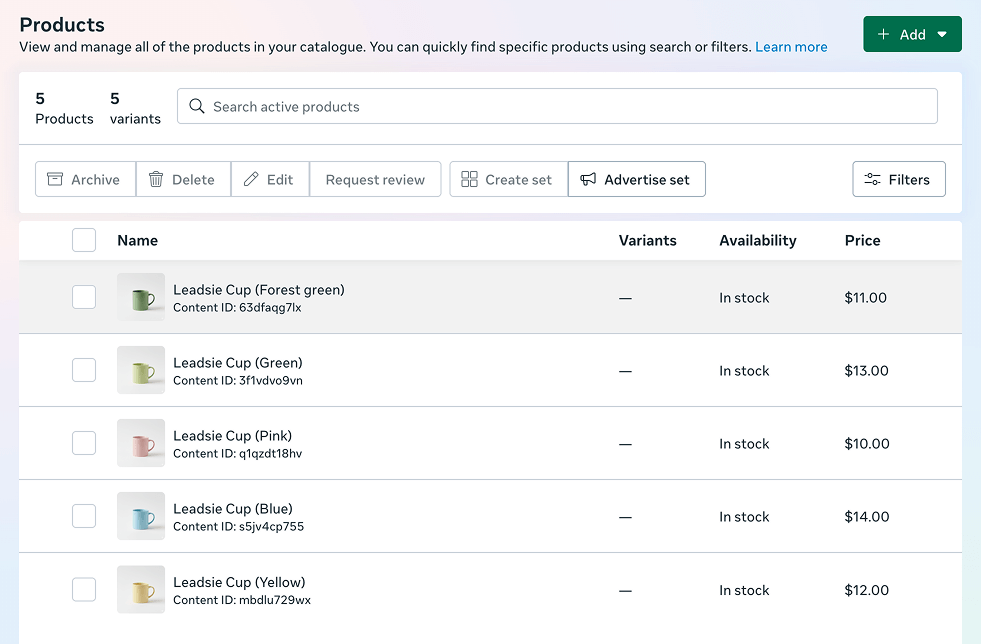
4. Separate variant IDs from product groups
Each item needs its own stable catalog ID. Related variants share an item_group_id; that group is not a product set. Keep a mapping from your internal SKU to the actual identifier received by Meta. A platform may generate or transform that identifier, so do not assume it equals the SKU, a bare database number or the product URL.
| Variant | Catalog item ID | Group | Illustrative data |
|---|---|---|---|
| Blue tee, M | DEMO-TEE-BLU-M | DEMO-TEE | 32.00 USD; 8 units available. |
| Blue tee, L | DEMO-TEE-BLU-L | DEMO-TEE | 32.00 USD; out of stock. |
| Storage tray | DEMO-TRAY-01 | A separate, independent product | 18.00 USD; 12 units available. |
The counts and prices above are constructed teaching values. Keep color and size explicit, use the appropriate image, and open the destination with the correct variant selected. Do not merge unrelated items into a group to make a count look smaller. If counts differ between views, first establish whether you are comparing variants, groups, eligible items or an ad’s selected set.
item_group_id = DEMO-TEEDEMO-TEE-BLU-MDEMO-TEE-BLU-L5. Check that event product IDs match the catalog
For an item-level event in this example, content_ids: ["DEMO-TEE-BLU-M"] pairs with content_type: "product". A group-level event could instead refer to DEMO-TEE with content_type: "product_group". Meta’s custom-data model distinguishes those meanings. Changing only the type while leaving an incompatible ID does not repair matching.
Inspect ViewContent, AddToCart and Purchase for the exact journey you intend to support. Compare strings including prefixes and case, the connected event source, selected variant and received item record. A successful event delivery does not prove that its product identifier exists in this catalog.
Respect the platform’s documented mapping. Meta’s WooCommerce integration source illustrates why inspection matters: the catalog item ID, called retailer ID in the code, can be changed through filters, and variations use a parent identifier for grouping. Do not blindly rewrite a supported group-level integration into item-level events. Use the Pixel and CAPI troubleshooting guide for delivery and deduplication.
DEMO-TEE-BLU-Mcontent_ids = ["DEMO-TEE-BLU-M"]content_type = "product"id = DEMO-TEE-BLU-Mcontent_ids = ["DEMO-TEE"]content_type = "product_group"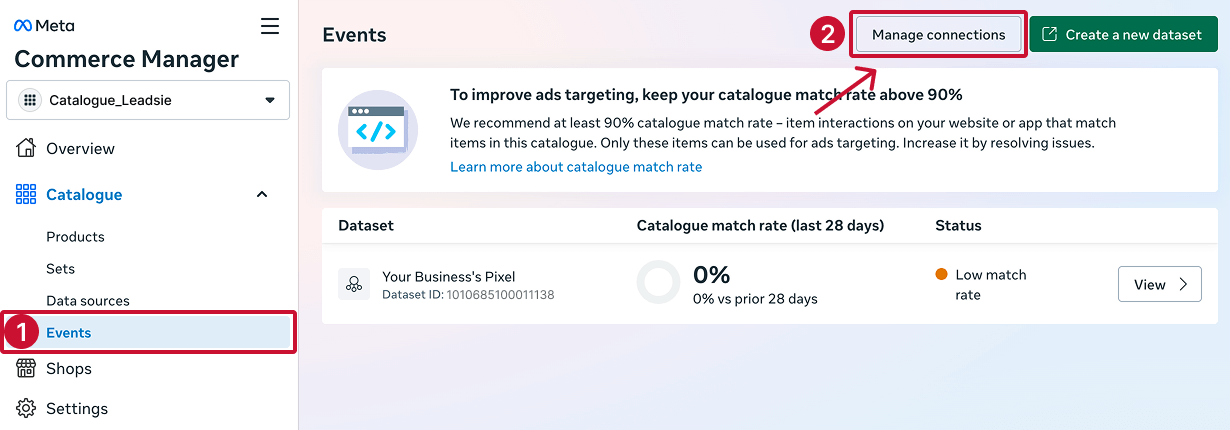
6. Test price changes, stock changes and product removal
Rehearse three changes in a controlled test catalog or supported test workflow: change a price, make one variant unavailable and remove one item. Record the source edit, generated file or API result, import time, received item and resulting eligibility. Choose an item whose disappearance you can explain; do not test a bulk replacement on the production catalog with a sample file.
Meta’s Product Feed API documentation distinguishes replace behavior from update_only updates: an update-only upload creates or updates items without deleting omitted ones. Supplementary feeds update existing items rather than creating or deleting them. Therefore, omission from a file is not a universal deletion instruction. Confirm your source’s actual mode and process for removing products.
Check the final record after the next import, not just a “sync requested” message. A disconnected data source, failed fetch or another integration that overwrites the data later can leave an old price or removed item present. When the source is fixed, verify the affected item and its active sets and ads; do not delete the entire catalog as the first response.
Plan refresh frequency around stock and price changes. The feed-generation schedule, Meta fetch schedule and processing time are separate. Do not promise instant propagation or use an old ad preview as proof of current availability.
price: 32.00 USD → 29.00 USDavailability: in stock → out of stock29.00 USDOut of stock
29.00 USDOut of stock
29.00 USDOut of stock
29.00 USDOut of stock
7. Build product sets for a specific advertising purpose
Give each set a purpose, inclusion criteria, owner and review date. Start with one broad eligible range and only add splits that change the offer, budget decision or operational risk. Tiny overlapping sets can make interpretation harder without improving the underlying product information.
| Set | Purpose | Required check |
|---|---|---|
| Core ready-to-ship range | Promote products the operation can reliably support. | Whether items can be advertised, their stock and destination pages. |
| Seasonal selection | Present a coherent time-limited offer. | Included items, dates, media and removal after the promotion. |
| Products for a comparison test | Compare a product selection or presentation defined before the test. | Sufficient eligible items, appropriate variants and a defined comparison. |
Meta’s catalog reference now recommends internal_label for set organization, rather than repeatedly changing creative-facing custom labels. Check that your feed or channel forwards the field. Use consistent whole labels such as core_ready, then inspect the items actually matched; a tag entered in your store is not proof that Meta received it.
Review any settings that can add recommended or other products beyond your intended selection. Save the final item list and preview. Excluding an item from one set does not remove it from another set, an all-products campaign or the catalog itself.
internal_label = core_readyAND availability = in stockDEMO-TEE-BLU-MDEMO-TEE-BLU-LDEMO-TRAY-018. Follow the correct store and market path
Shopify
Use Facebook & Instagram → Product status to find the affected product and publishing issues. Shopify’s publishing guide describes channel availability and automatic synchronization of changed product details. Fix the product at its owner, save it and verify the received result. A product visible on your online store is not necessarily published to this channel.
Also inspect the relevant channel market. Shopify’s Markets documentation explains inherited catalog/currency settings and channel-specific customization. Test the exact country, currency and variant destination used by the ad; your default storefront is not sufficient evidence for every market.
WooCommerce
In the official Meta for WooCommerce extension, review Marketing → Facebook, the affected product’s sync mode and product/variation settings. The official extension documentation describes automatic product updates and manual synchronization for troubleshooting. Confirm inventory management and variation-level data. Record the installed version and whether another feed integration owns the same items before triggering a broad resync.
9. Preview the ad and the real destination together
In your account’s supported Sales/catalog workflow, select the intended catalog, set, Page or account shown in the ad, event source and destination. Keep the campaign in a reviewable draft until the checks pass. Screen labels vary; do not look for an obsolete objective name simply because an old tutorial uses it.
Preview representative items and placements. Check image crop, product title, current price, currency, sale wording and the destination. Confirm that a variant link does not silently open a different default option. Check any creative enhancements or extra product selection controls against the final preview, not assumptions about a toggle’s label.
Open the destination on mobile as a customer in the intended market. Confirm stock, shipping eligibility, tax presentation and the price through checkout. A valid catalog record cannot compensate for an undeliverable destination or a misleading product page.
10. Start where the product data first goes wrong
- Item missing: inspect channel publication, source inclusion, import result and item-level issues before changing campaign targeting.
- Price or stock stale: compare the system controlling the field, the last successful update and any other integration that overwrites the data later.
- Events arrive but few products match: compare the actual catalog ID, whether the event uses an item or group product identifier, and the connected event source.
- Unexpected variant: inspect grouping, event mapping, variant URL and the selected item in the preview.
- Removed product still appears: verify deletion mode, received status and every active set or ad using it.
- Wrong market experience: test channel currency, destination behavior and delivery eligibility together.
Save the evidence for one item before attempting a catalog-wide repair. Recheck a second item after the change to catch a rule that fixed the example but broke the rest of the range.
11. Keep a release record and a maintenance owner
For each launch, retain the catalog and data-source IDs, last successful import, product-set rules, sampled item IDs, matching event evidence, market and currency, mobile destination result and reviewer. Include the unavailable and removed test items, not only the products that looked correct.
Approve launch only when unresolved issues are assigned and the advertised offer is deliverable. Set a review after price changes, promotions, product removals, integration updates and market changes. Use Website Operation to connect the ad’s item range with stock, contribution and customer service. Accurate catalog data supports testing; it does not guarantee sales or profit.