

Last updated on October 26, 2026 at 10:03 AM
This Semrush tutorial presents a website and competitor research workflow: review search performance, find keywords and pages, assess content opportunities, investigate backlinks, and save results you can check again. It is designed for ecommerce operators and brand researchers using the tools for the first time. You will build a research record with evidence, query conditions and next actions.
The interface and guidance were checked on October 22, 2026. Each screenshot is a separate snapshot; countries, devices, dates and domain scopes can differ. Align those settings before comparing reports. Traffic, search volume and difficulty metrics support research; they are not Anker’s real-time visits, sales or business results. Features, historical data and export allowances depend on your current account access.
1 Prepare your research subjects and questions
Sign in through the Semrush entry point, then prepare your domain, comparison site and product terms. Some links are affiliate links; Beecommercer may earn a commission.
- Use anker.com as your research subject, choose a target country, and prepare three product terms relevant to your business. Start with usb c charger, then test themes such as power bank.
- Choose a comparable website. This Keyword Gap example uses ugreen.com. Consider belkin.com as an additional candidate only after checking its products and target market.
- For a first session, follow steps 2–8 to learn navigation, Domain Overview, organic rankings, keyword evaluation, expansion and gap analysis. Continue with backlinks and total website traffic in steps 9–10.
- The project tools in steps 11–12 are intended for websites you manage or are authorized to work on. For competitor research alone, you can skip those settings and save your research record.
A useful outcome is an opportunity list you can validate against keywords or pages. Query other Anker-associated brand sites separately; do not automatically combine them with anker.com. Before researching a category such as portable power station, also check whether it belongs to this domain’s product range.
2 Find the tools and align your analysis settings
- Expand SEO in the left navigation and locate Domain Overview, Organic Rankings, Keyword Overview, Keyword Magic Tool and Keyword Gap. If the menu is collapsed, expand it or search for the English tool name within the application.
- To research the whole site, enter anker.com and select Root domain. Use Subfolder and a complete directory only when researching a particular blog or product section.
- Choose a country database, such as United States. In reports with the relevant controls, confirm Desktop or Mobile and the current or historical date.
- Record the domain, database, device, date and scope. Check them again after switching reports instead of assuming the settings carry over.
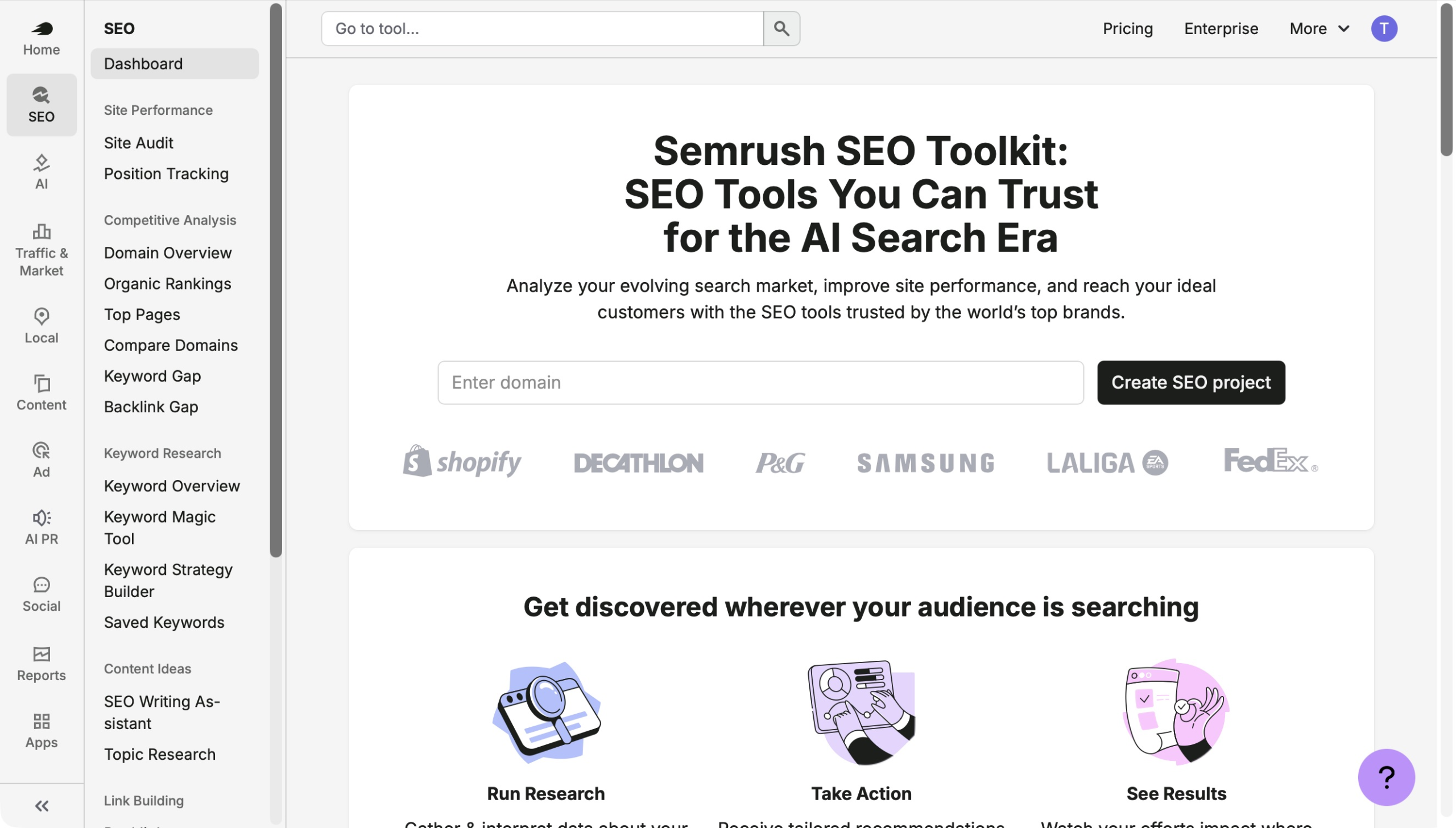
Start interpreting numbers only when you can identify the query subject and filters. Organic Rankings is the new name for Organic Research; Backlinks may also appear as Backlink Analytics. A country database represents a search market, not necessarily the visitor’s country. Changing the interface language does not change the analysis market, and exact-URL data cannot stand in for an entire website.
3 Use Domain Overview to assess search performance
Domain Overview provides an initial outline of search performance so you can decide which keywords, pages and periods deserve closer attention.
- Open SEO → Domain Overview, enter anker.com, select Root domain, and click Analyze, Search or the equivalent query button in your interface.
- Confirm the country, device and date, then inspect Organic Traffic, Organic Keywords, Paid Traffic, Authority Score, Referring Domains and Backlinks.
- Switch the trend range to the past year and record one clear period of growth or decline. The screenshot itself selects 2Y; do not describe it as already showing a one-year range.
- Click the organic traffic number or the relevant View details control to open ranking details and investigate the keywords and pages behind the change.

Organic Traffic is an estimate of search traffic. Authority Score is Semrush’s own comparative metric, not a Google score. Neither organic nor paid search figures are measurements from the brand’s analytics account. Describe the trend first, then look for supporting details. Do not add different metrics together, and check the scope of independent modules farther down the page.
Scroll down to examine keyword distribution, Top Organic Keywords and related topics. Record terms and pages worth opening for validation.
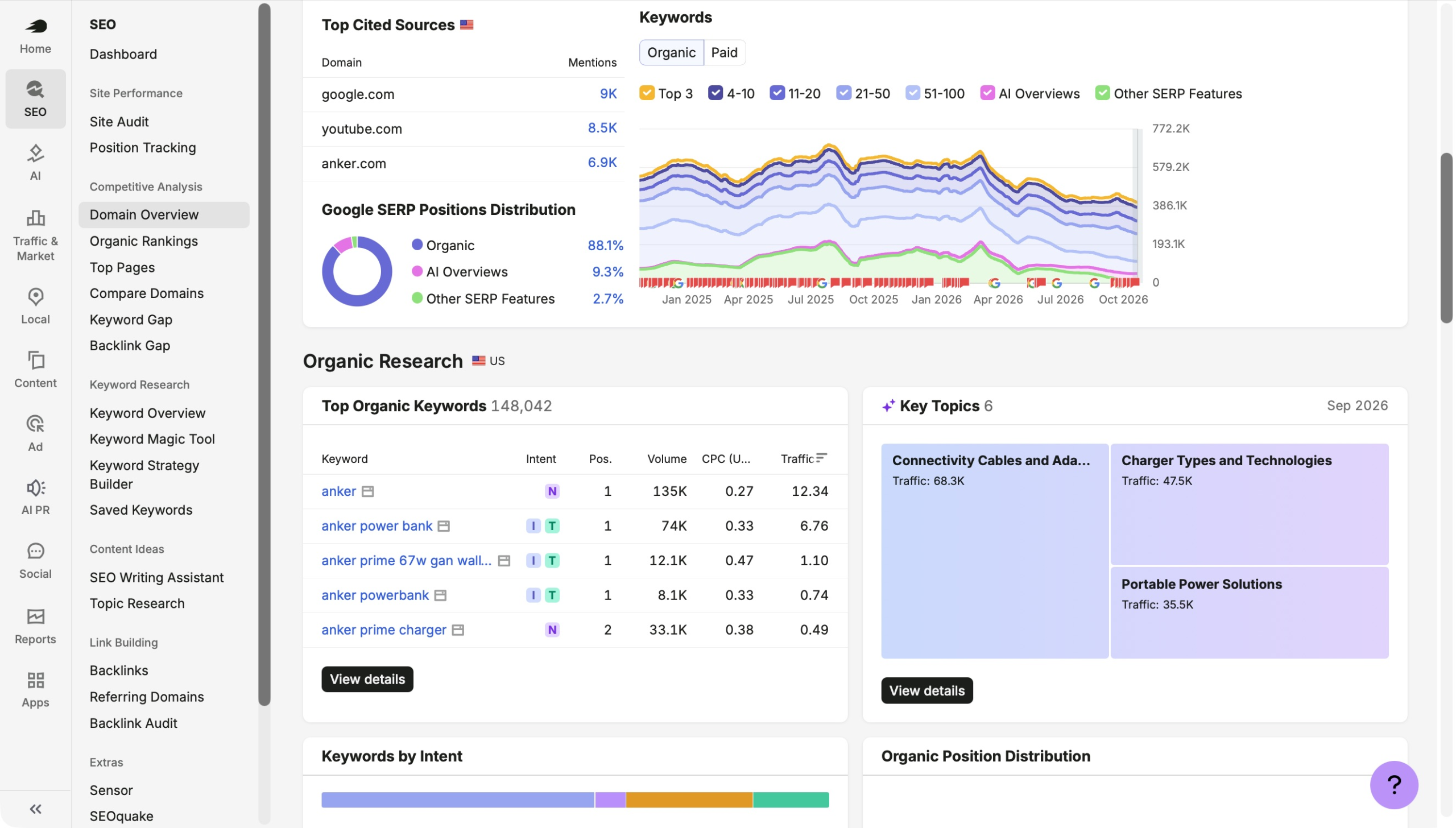
The Organic Research module in Figure 3 is labeled US, so do not interpret every module using the previous figure’s Worldwide setting. Key Topics has its own month. Brand terms often dominate the leading rows; filter non-branded terms separately when studying category opportunities. Topic cards provide leads, not proof that a particular campaign caused a traffic change.
4 Find the keywords a competitor ranks for
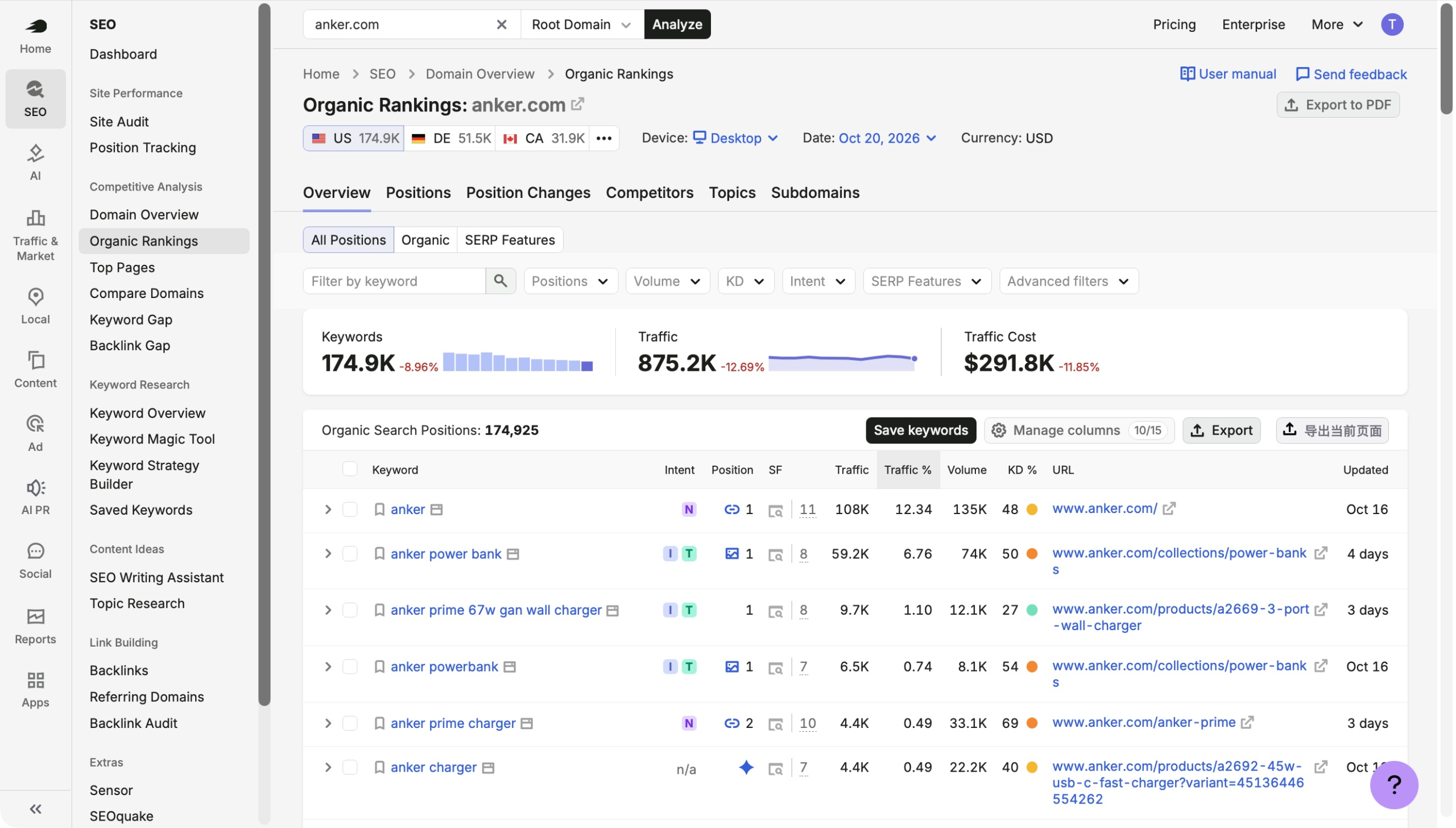
- Open SEO → Organic Rankings, enter the domain and select a country database. Open Positions for the keyword details; some interfaces also display a keyword table in Overview.
- Sort by Traffic or Traffic % and inspect Keyword, Position, Volume, KD%, Intent and URL. Use Manage columns when you need additional fields.
- Set the Positions filter to 11–20 to find candidates close to the top 10. When researching category demand, exclude brand names and common spellings, then manually check for missed variants.
- Click a keyword or SERP icon to inspect the results, then open the matching URL to confirm the page type and product scope. Save the keyword, position and URL together.
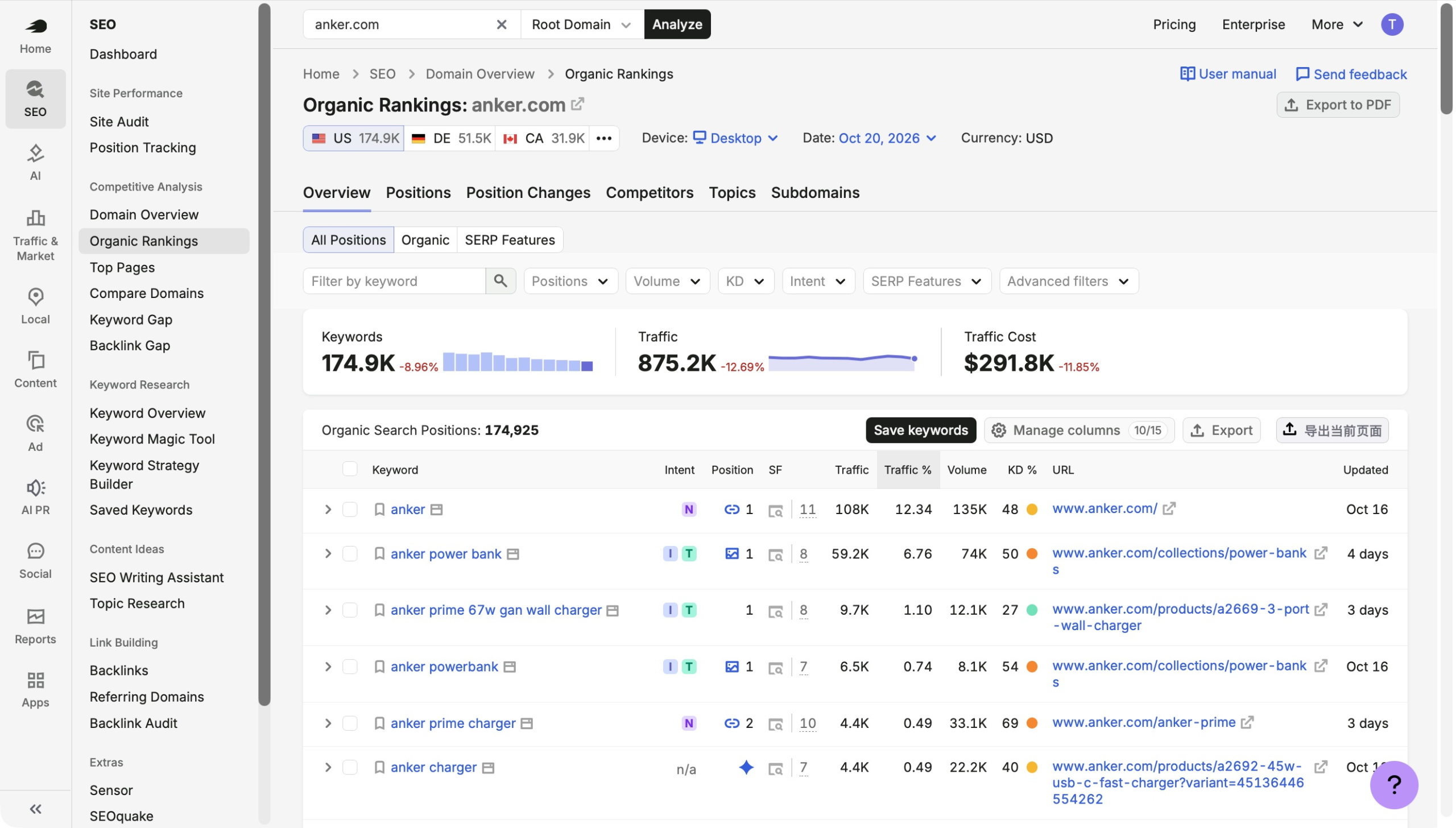
Traffic and Traffic % help identify the distribution of estimated traffic contributions. Volume represents search demand in the selected market, not visits arriving from that keyword. Traffic Cost estimates the advertising replacement value of search traffic; it is not actual advertising spend, revenue or profit. The tool primarily covers Google’s top 100 results in the selected database. No result does not mean the site has never received traffic. This US report also cannot be compared directly with the preceding Worldwide overview as if the settings were identical.
5 Follow keywords to pages and competitors
- Find Pages within Organic Rankings or open Top Pages in the newer sidebar. Distinguish homepages, category pages, product pages and blog posts before inspecting their traffic and keyword fields.
- The newer Top Pages report includes multiple sources. For organic search research alone, select Organic under Source or Sources, confirm the date, country and domain scope, then sort by the corresponding traffic.
- Open a relevant page and its keyword details. Record the main topic, page format and link structure without copying the content.
- Open Competitors and choose comparable sites using products, market, content scope and Common Keywords, then check what those businesses actually do.
- In Position Changes, confirm the comparison dates. Review new, improved, declined and lost keywords separately, then return to the relevant URLs to investigate possible explanations.
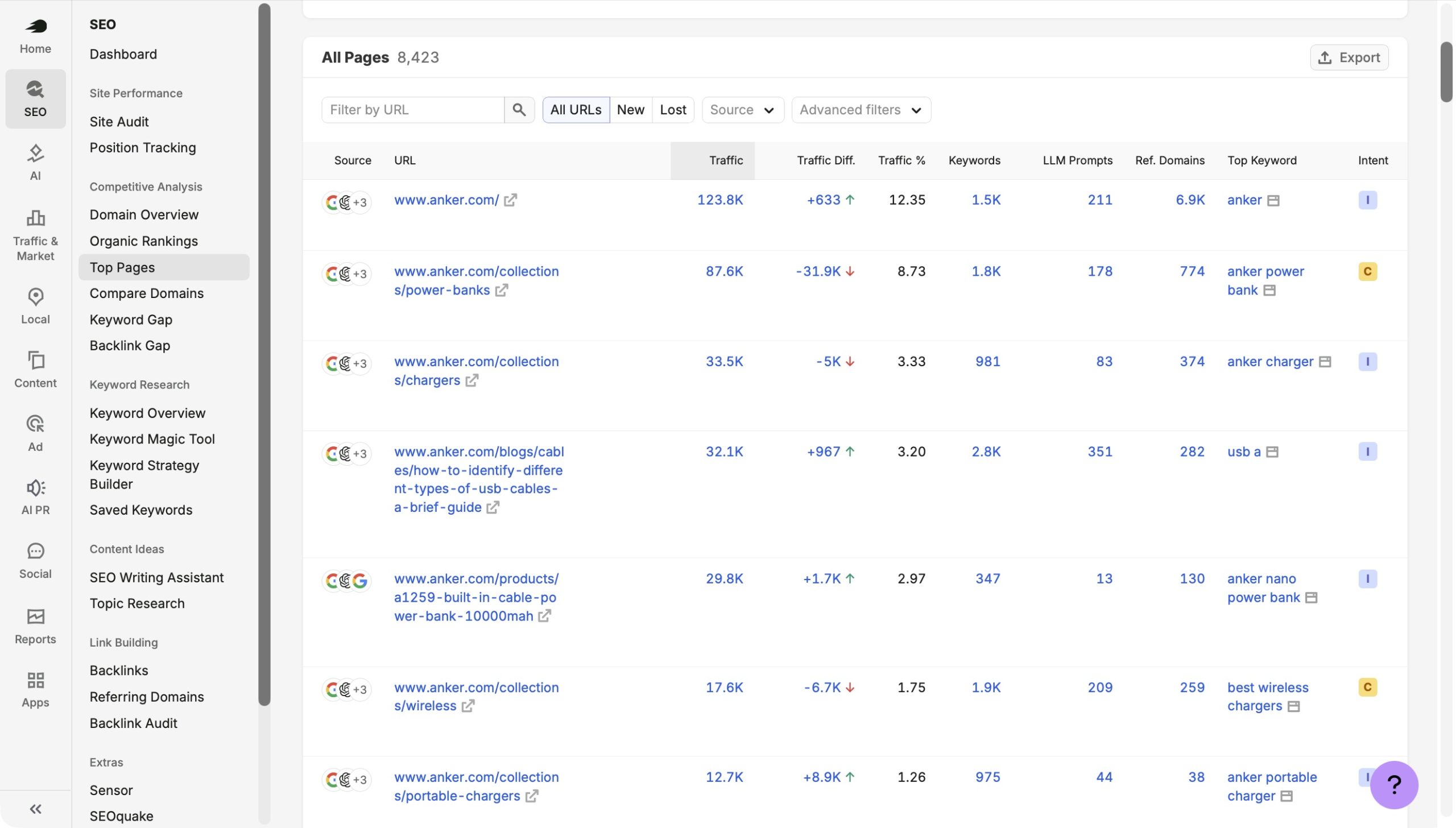
Use this figure to identify the homepage, product directories, blog posts and product URLs. For an SEO comparison, first select the Organic source and return to the top to check the settings; do not automatically carry over the date from Organic Rankings. Write a specific observation supported by two or three evidence URLs. Search competitors can be publishers, forums or platforms rather than businesses selling the same products. A curve coinciding with a campaign only suggests a hypothesis.
6 Decide whether a keyword deserves further work
- Open Keyword Overview, enter usb c charger, select United States and run the query. Check terms such as power bank as relevant to your business.
- Review Volume, Global Volume, KD%, Intent, Trend and CPC. Volume is the average monthly number of searches in the selected market. Global Volume combines country databases and cannot replace demand in one country.
- Scroll to SERP Analysis and identify whether leading results are categories, products, reviews or tutorials. Use View SERP to inspect the results snapshot.
- Match the search intent to your planned page. For several terms, use Bulk Analysis and enter batches within the interface and account allowances.
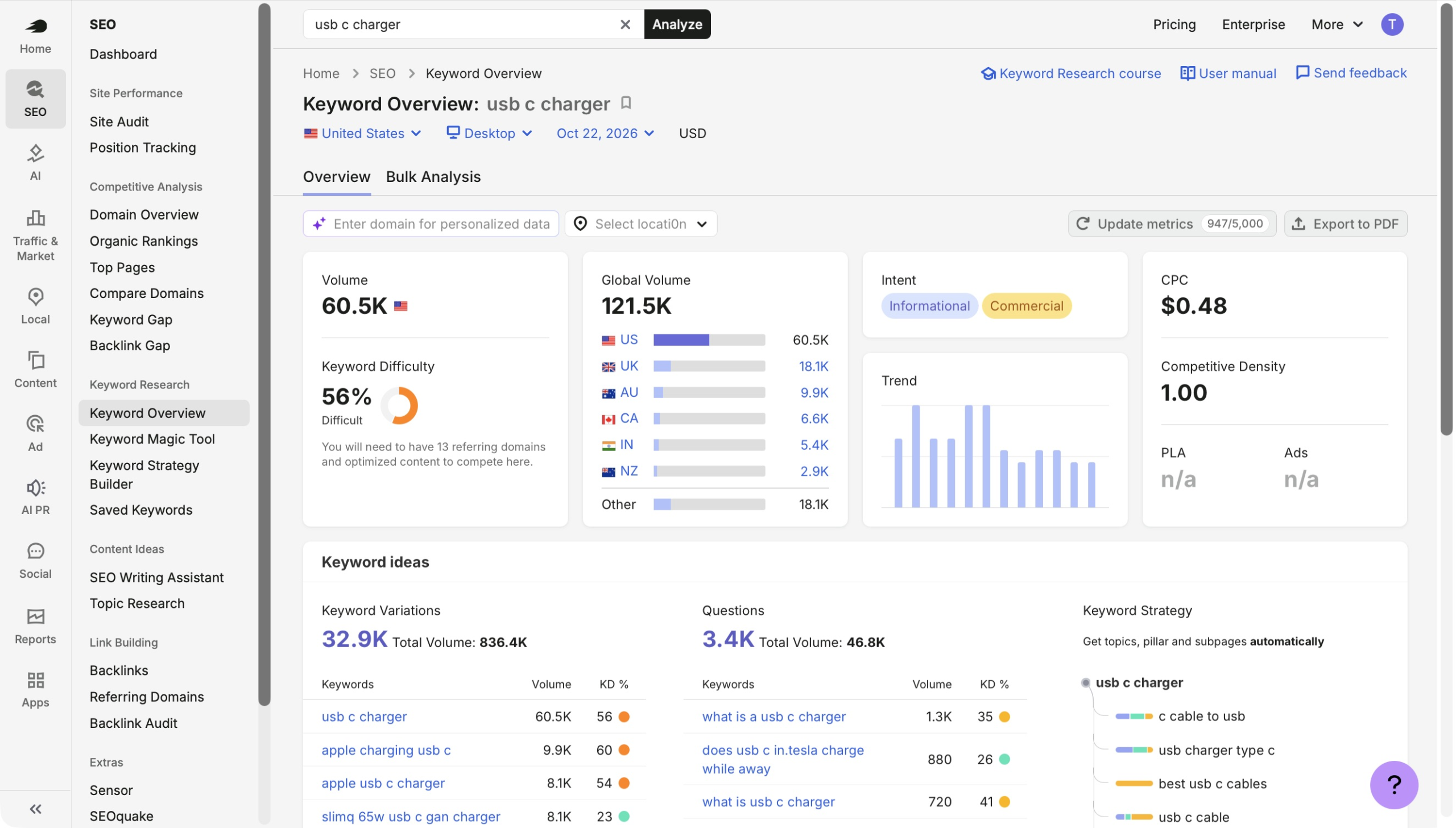
I means informational, N navigational, C commercial investigation and T transactional; one term can have more than one intent. First check whether your page can meet the need, then compare demand and difficulty and use Trend to investigate seasonality. KD% estimates the difficulty of reaching the top 10 organic results; it is not a probability of success. CPC is an advertising cost-per-click reference, while Competitive Density describes paid competition. Neither is an acquisition cost.
Search volume is not a count of people or sales. Referring-domain suggestions in the interface are not guaranteed ranking requirements. The word charger can also lead to automotive contexts. Manually check references to Dodge, Challenger and Hellcat. A term such as car charger can represent relevant in-car charging demand and should not be excluded automatically.
7 Expand themes with Keyword Magic Tool
- Enter usb c charger, select United States and run the query.
- Start with All Keywords or Broad Match, then compare Phrase Match, Exact Match and Related. These are research filters; they do not create Google Ads campaigns, and you should not apply advertising-platform matching rules to them.
- Click Questions for question-based searches and use Topics or Groups to browse themes and keyword groups. Choose C or T in Intent when investigating purchase research. Include keywords can add relevant terms such as usb c; Exclude keywords can remove unrelated brands, recruitment terms or the wrong context.
- For practice, start with Volume≥100 and KD≤49, then relax the filters if there are too few results. These thresholds are starting points, not success criteria.
- Select 10–20 relevant terms, inspect their SERPs and group terms with the same intent into page themes. Keep the main term, intent and proposed page.
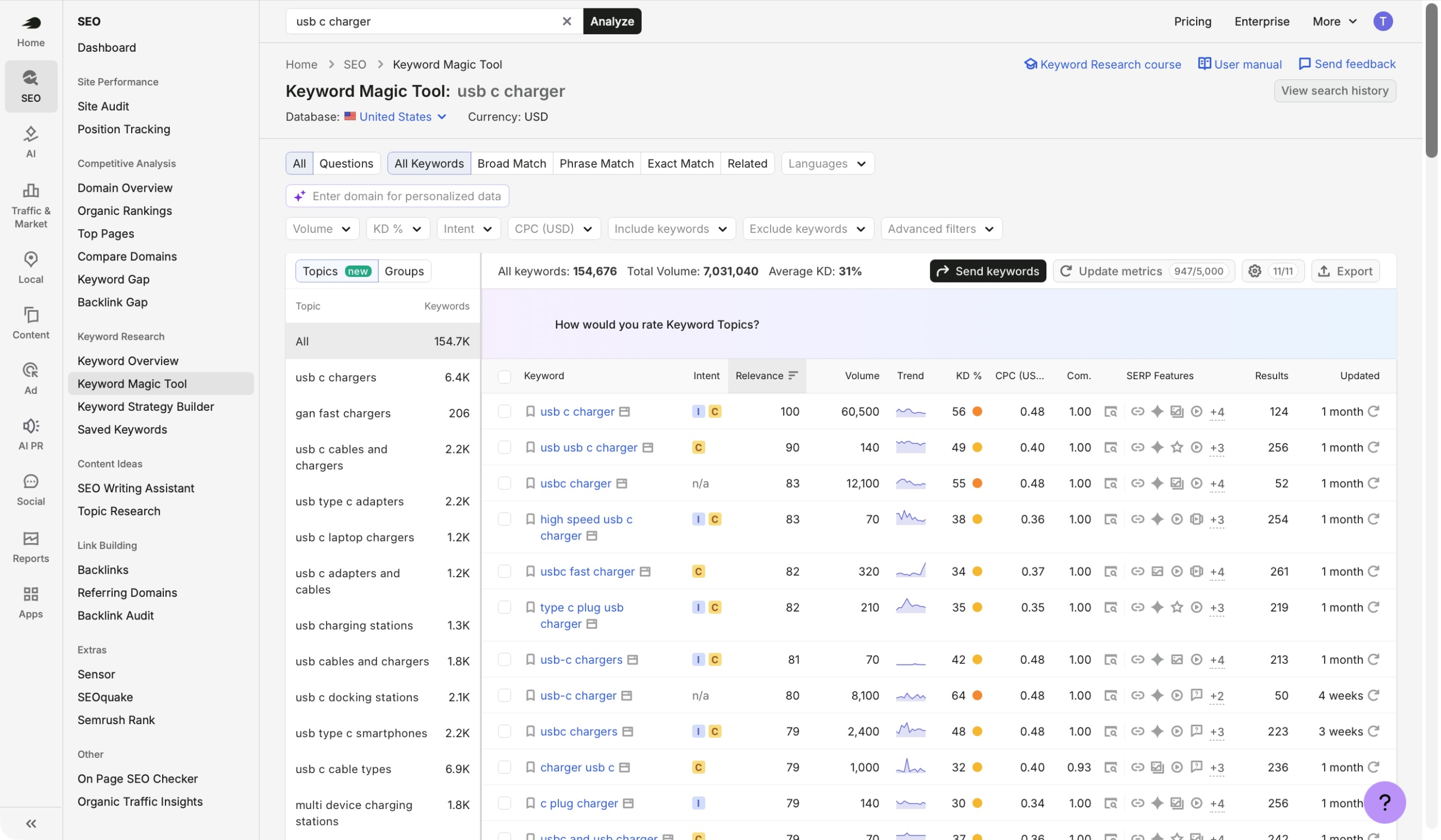
Similar terms may belong on one page. Questions often suit tutorials and FAQs; commercial research terms may suit reviews or comparisons. Check business relevance before the numbers, including automotive contexts and unrelated brands. PKD is difficulty personalized to the entered domain and must be distinguished from general KD. Use column settings or horizontal scrolling for additional fields; do not infer values from columns outside the visible area.
8 Find new opportunities with Keyword Gap
- Enter anker.com in the first field labeled You, then add ugreen.com. You can set a research brand as You even without owning a website. Add candidates such as belkin.com only after checking products and markets. Compare up to five websites in total.
- Align Root domain, Organic keywords, country, device and date, then click Compare.
- Start with Missing and Untapped, then filter category terms, C or T intent, and appropriate Volume and KD. For existing keywords, inspect Weak and filter the baseline site to positions 11–20.
- Inspect each site’s position and corresponding URL for a candidate. Once you confirm relevant products and content, assign it to either a new-page list or an existing-page improvement list.

Missing means all selected competitors rank and the baseline site does not. Untapped means at least one selected competitor ranks and the baseline does not. Weak means the baseline ranks below every selected competitor. With only one competitor in this example, Missing and Untapped contain the same terms. They can differ when more competitors are added.
Scroll down and review the Missing table one row at a time. Evaluate relevance before assigning priority.
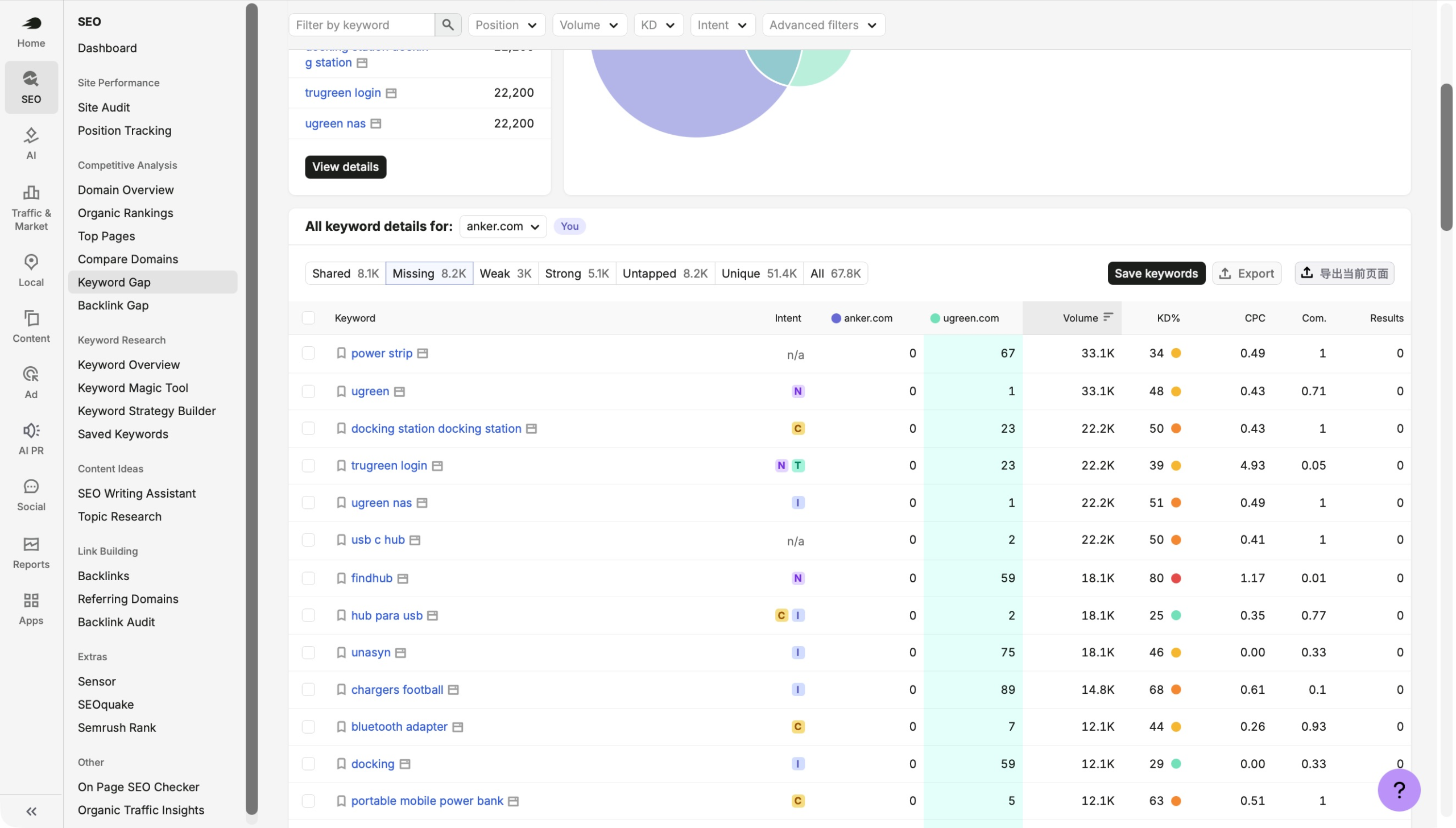
The table includes brand terms, relevant products and unrelated contexts. For example, ugreen is a competitor brand term, while chargers football refers to a different context. Appearing in a gap table alone does not make a term a content opportunity. No ranking means none was detected within that database and those settings. Gaps also change with the competitor set. A competitor ranking for a term does not mean it fits your products or will generate orders.
9 Investigate backlink sources and content assets
- Open Backlink Analytics or Backlinks, enter the root domain and start with Overview.
- Record Backlinks and Referring Domains separately. The first counts links; the second counts distinct domains providing at least one backlink. Open Referring Domains to investigate relevant industry sources.
- In Backlinks, inspect the source page, target page, anchor text and link attributes. Use Indexed Pages and Anchors when researching content assets.
- Open several relevant source pages and confirm that the links remain present, the context is relevant and the content is legitimate. Save publishers or pages worth investigating separately.
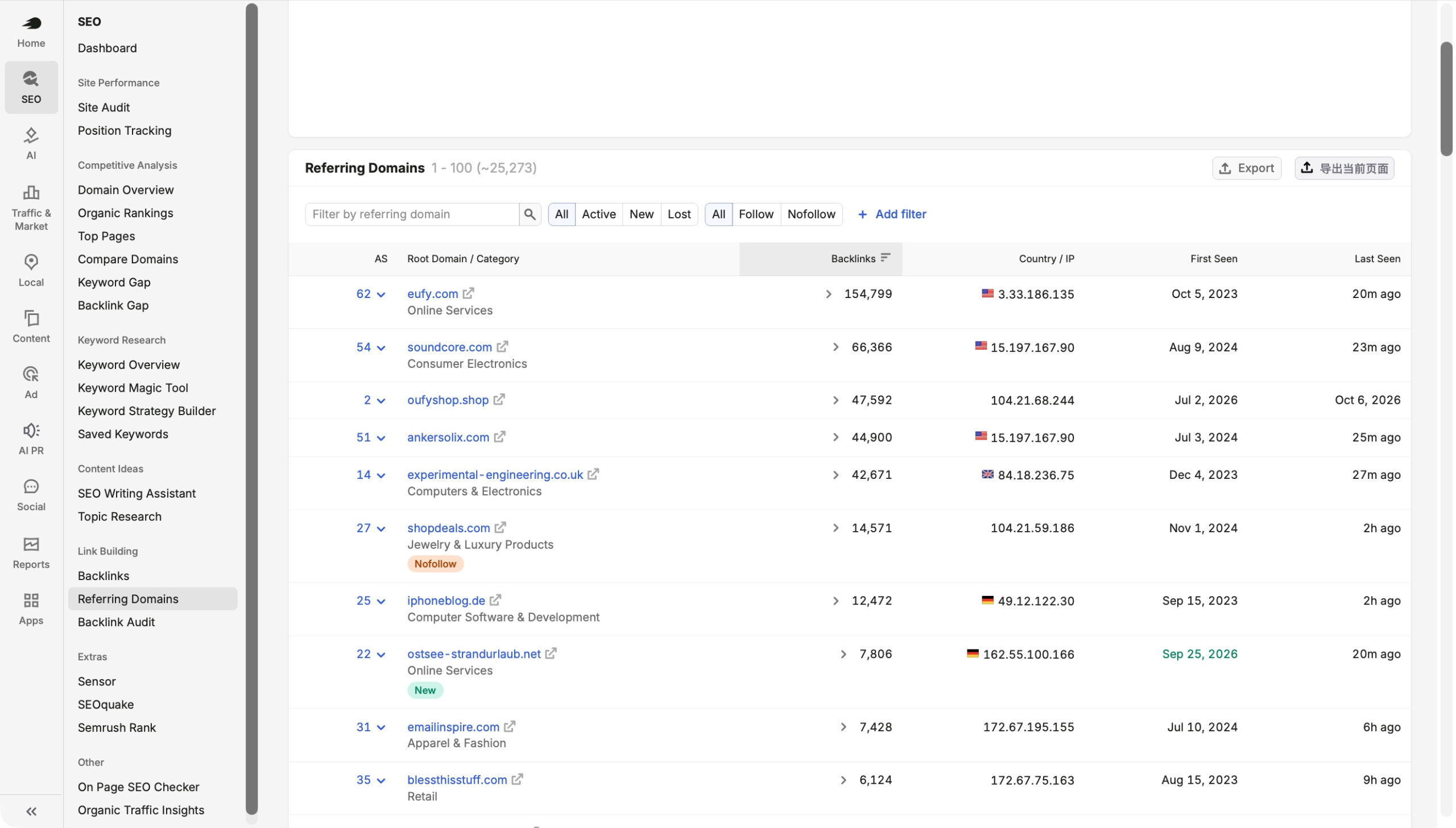
Entries such as eufy.com, soundcore.com and ankersolix.com are associated-brand leads; they cannot automatically be described as new media partnerships or independent endorsements. One domain may also supply many links. Inspect relevance, content quality and link placement before using Authority Score as a comparison aid. Newly discovered does not necessarily mean newly published, and lost does not necessarily mean deliberately removed. Align dates and scopes before comparing changes. Link counts are not partnership counts or sales revenue.
10 Review total website traffic and channel structure
Traffic Analytics in Traffic & Market studies total website visits and channel structure. Its measurement approach differs from organic search estimates in SEO reports, and access must be checked separately.
- Open Traffic & Market → Get Started and enter anker.com. For a comparison, use Add competitors and click Analyze. The newer interface may require you to save or select a List.
- Open Traffic Analytics and align the date, device and available regional settings. A practice setup is September 2026, Worldwide, All Devices.
- Wait for Summary to finish loading before inspecting Visits, Unique Visitors, Pages per Visit and Avg. Visit Duration. Preserve the hours, minutes and seconds format for duration.
- Use Traffic Channel Distribution to compare Direct, Organic Search, Paid Search, Referral and social traffic. Check whether changes persist in the trend chart. Investigate a channel or Sources & Destinations for origins, and use this toolkit’s Top Pages for popular pages.
Visits counts visits; Unique Visitors estimates distinct visitors. Compare within the same tool and settings first. A channel’s share can rise simply because another channel declined. These figures come from behavioral samples and models, not a brand’s internal analytics. Do not add them to Organic Rankings traffic or use them to calculate actual advertising returns or order counts.
No interpretable Traffic Analytics visit or engagement figures were obtained for this example. If you encounter loading placeholders, a locked interface or sample-domain access only, record the result as unavailable and check loading and permissions before continuing. Do not interpret it as zero visits.
11 Optional: audit a website you manage
- Use a website you manage or are authorized to work on. Open an existing project under SEO → Site Audit where possible. Before creating one, confirm the domain and allowances; the first project may configure and launch monitoring automatically.
- In General settings, inspect Scope, Limit per audit and Pages to crawl. Start with a small directory or limited pages, and set Schedule to Once.
- After confirming the configuration, click Start audit. If the website relies on JavaScript, check whether your subscription supports JS rendering and configure it for the site.
- After completion, review Overview and Issues, then open individual issues to find affected URLs. Crawl again after fixes and use Compare Crawls to compare results.
Prioritize real problems affecting crawling, indexing or user access. Record the issue, URL, owner and review date in a fix list. Site Health is a tool metric, not a Google ranking score. A completed crawl does not mean every page is indexed by search engines. Do not casually modify someone else’s shared project or start ongoing crawls. This section explains the workflow; it does not show Anker Site Audit results.
12 Optional: track your target keywords over time
- Open your project in SEO → Position Tracking. Prepare an initial set of 20–50 important keywords and planned landing pages.
- In Targeting, confirm the domain scope, search engine, device, target country or city, and language before continuing.
- In Keywords, enter terms manually or import from available sources such as CSV or TXT. Tag brand terms, category terms and content themes, then complete the wizard.
- When data is ready, review Visibility, Average Position, Estimated Traffic and individual rankings in Overview. Record changes weekly and check the actual landing pages.
Position Tracking monitors the terms you specify; Organic Rankings queries a database keyword set. Compare ongoing changes using the same terms, device and location. Evaluate business outcomes with your own GSC clicks, GA4 and conversion records as well. This section does not show Anker tracking results.
Replacing the original search engine, device or location recreates the target and loses its ranking history. To preserve records, check whether your account can add a new target. Do not delete an entire project just to switch settings; other monitoring data in the project may be deleted too.
13 Export data and preserve a verifiable record
- Confirm the domain, country, device, date, filters and selected rows. Check All, This group, Selected or equivalent options within Export. Visible or selected rows do not necessarily represent every available result.
- Use Export at the top right of keyword and Organic Rankings tables to choose XLSX or CSV. Keyword Magic Tool can retain groups where the interface offers it. Export to PDF in an overview is useful for presentation charts.
- Export backlink details from the Backlinks table. In Site Audit, choose the appropriate results, such as Issues, Crawled Pages or Compare Crawls.
- Name files with the domain, tool, country and date. Open the export and check its row count, column names, first and last records, and filter scope. Keep an unchanged original.
This figure identifies the entry points; it does not show a completed download. Keep at least the keyword, intent, Volume, difficulty type and value, position, URL, query conditions and next action. Export rows and frequency depend on the plan. Import CSV as UTF-8 if characters appear corrupted. A PDF overview cannot replace row-level details, and saving a few leading rows does not create a complete keyword database. Check account and sensitive project information before sharing.
14 Complete a 30-minute exercise and troubleshoot
- Spend the first 5 minutes defining the question and analysis settings, then record search scale and trends in Domain Overview.
- Use the next 8 minutes in Organic Rankings to identify 5 relevant keywords and 3 pages.
- Spend 7 minutes checking demand, intent and SERPs with Keyword Overview and Keyword Magic Tool.
- Use 5 minutes in Keyword Gap to choose 3 gaps worth validating.
- Spend the final 5 minutes exporting candidates and recording a proposed page, business relevance, priority and next action. Continue with available reports if a module is outside your access.
A useful result contains three specific opportunities and supporting evidence: for example, one category-page improvement, one comparison-content topic and one publisher source to investigate. Distinguish facts, interpretation, actions and assumptions still requiring validation. The time allocation is a practice suggestion; adapt it to your access and experience.
- No data: Check spelling, country database, scope and date. Zero results do not prove zero demand.
- Different numbers: Compare tools, definitions, dates and devices first. Semrush and Similarweb use different methods, so their numbers need not match.
- Missing tool: Search within the application and try both the current and previous English names.
- Too few exported rows: Check selected rows, filters and account limits.
- Unclear trends: Extend the observation period. Do not use a single month’s movement to explain a long-term trend or turn correlation into causation.
15 Use this metric reference
Confirm metric names, units and denominators before comparing results within the same tool and scope.
| Metric | Meaning | Reading guidance |
|---|---|---|
| Organic Traffic | Estimated organic search traffic | Estimated from ranking data and other inputs; not total website visits. |
| Organic Keywords | Keywords with organic rankings | Detected within the selected database, date and scope. |
| Volume | Search volume | Average monthly searches in the selected market, not people or sales. |
| KD% | General keyword difficulty | An organic ranking difficulty metric, not a success probability. |
| PKD% | Personal keyword difficulty | Specific to the entered domain; distinguish it from general KD. |
| Intent | Search intent | I informational, N navigational, C commercial investigation, T transactional. |
| CPC | Advertising cost-per-click reference | Different from acquisition cost, product price and profit. |
| Traffic Cost | Estimated advertising replacement value of search traffic | Not actual advertising spend or revenue. |
| Authority Score | Semrush’s proprietary authority metric | Useful for comparisons within the tool; not a Google score. |
| Referring Domains | Referring domains | Distinct domains supplying at least one backlink. |
| Backlinks | Backlinks | A link count; one domain can provide multiple links. |
| Visits | Visits | Use Traffic Analytics for estimated visits across channels. |
| Unique Visitors | Estimated distinct visitors | Different from visits and not a count of buyers. |
N/A or a loading placeholder means no display value is available. Preserve the original state and record the reason instead of filling missing data with zero.
16 Copy the research record and assign next actions
Fill in one row after each module. Keep units, comparison periods and evidence filenames next to the values.
| Module | Observed fact | Evidence and settings | Next validation |
|---|---|---|---|
| Domain Overview | Enter the value or change with units | Domain, date, country, device, scope, figure or export file | Enter the open question and specific action |
| Organic keywords | Enter the value or change with units | Domain, date, country, device, scope, figure or export file | Enter the open question and specific action |
| Pages and gaps | Enter the value or change with units | Domain, date, country, device, scope, figure or export file | Enter the open question and specific action |
| Backlink sources | Enter the value or change with units | Domain, date, country, device, scope, figure or export file | Enter the open question and specific action |
| Total website traffic | Enter the value or change with units; note if unavailable | Domain, period, region, device, figure or export file | Enter the open question and specific action |
- Target domain: anker.com. Comparison sites: enter the actual websites.
- Period or snapshot date, country, device and domain scope: record each setting.
- Applied filters and data export date: preserve the complete record.
- Conclusion: state what you observed, under which conditions, which screenshot or export supports it, and what evidence is still needed.
When you are ready, follow these steps in Semrush for your first research session. Start with one domain, one market and three product terms, then turn your findings into tasks you can validate in the next review.