

A useful Shopping title helps a buyer identify the product, the option they will receive and the specifications that matter to the purchase. This tutorial takes you from a title audit to a small, documented update in Merchant Center, with checks on the processed product and a sensible way to review the result.
The four interface figures are teaching illustrations. Account names, products, prices and issue states are examples, not actual account approvals or advertising results. The English product wording is an exercise for an English-language catalog; write your own titles in the language of the product data and its landing page. Menu names and available controls can vary by account.
1 Start with one product family and a clear record
Choose a small set of existing product IDs. Record the current title, selected variant, landing-page URL, content language, feed label, data source and the person who maintains it. Keep the same IDs throughout the exercise. A title update does not require new product identities.
The illustrated product is a Beecommercer Operator Logo Tee, with the option name CVC Black, size L and ID BEE-TEE-BLK-L. Its illustrated price is 32 USD. These values keep the exercise consistent; replace them with verified information from your own catalog.
If your catalog is not connected yet, complete the Merchant Center setup tutorial first. Keep title work separate from changes to pricing, availability or campaign structure so you can inspect each change.
2 Apply the title rules before adding more words
The title attribute accepts 1–150 characters. This is a field limit, not a target length or a ranking score. Put the most important identifying information first: many displays show around the first 70 characters or fewer, depending on the screen and format. A 70-character preview is useful for editing, but 70 is not the submission limit. See Google’s title attribute specification.
| Check | What to do |
|---|---|
| Product identity | Describe the actual product and selected variant. Use wording supported by the landing page and product specifications. |
| Useful attributes | Include the brand, model, product type, size, color, capacity or quantity when they help identify this offer. |
| Professional wording | Remove promotional endings, price or shipping messages, repeated synonyms, decorative symbols and emphasis in all capitals. Keep legitimate model names and technical abbreviations. |
| Language and consistency | Match the product-data language and the language needed to understand and purchase the product on its landing page. |
| Separate attributes | Continue supplying applicable identity, variant and grouping attributes. A descriptive title does not replace those fields. |
The title does not need to repeat the landing-page heading word for word, but both must identify the same product and option. Do not use that flexibility to add an unsupported material, certification, fit or compatibility claim. Google’s product-data optimization guidance recommends using the product language already present on the landing page.
3 Inspect the original title without changing it yet
- Open Merchant Center → Products & store → Products → All products, or find Products in your current navigation.
- Search for the exact submitted product ID and open the intended variant.
- Select Edit product. Compare Title with the product URL, brand and description.
- Copy the original title into your review sheet, then leave the editor without saving while you establish the correct update source.
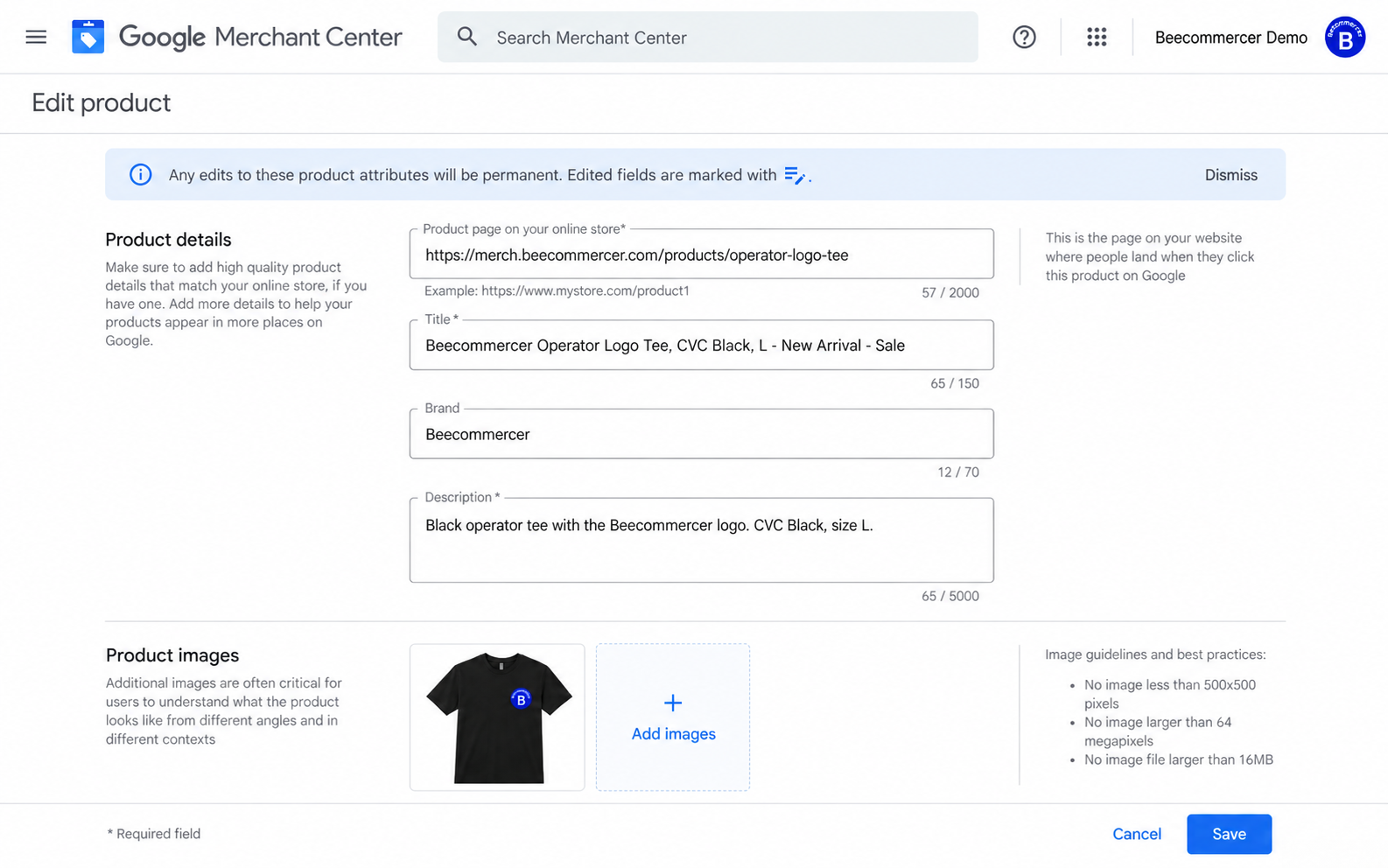
The illustrated original is:
Beecommercer Operator Logo Tee, CVC Black, L - New Arrival - SaleIt contains 65 characters, including spaces and punctuation. It fits the field limit, but the promotional ending adds little product identification. Passing the length check is only one part of the review.
4 Turn buyer intent into questions you can verify
Start with evidence about what people are trying to buy. Review the search terms available for the relevant advertising activity, your site’s search records and recurring customer questions. Note the date range, market and reporting scope. Aggregated search categories are useful context, but do not assign a query to a specific SKU unless the available data supports that connection.
Search Console queries can supplement your understanding of organic discovery; they are not Shopping advertising queries. A missing query in a report is not proof of zero demand. For the reporting limitations, use Google’s search terms report guidance.
| Illustrative research note | Question for the product record | Editing decision |
|---|---|---|
black logo tee large | Does this offer have the specified logo, color option and size? | Make the verified product type and variant clear; preserve the catalog’s accurate option names. |
100% cotton logo tee | Is the fiber composition documented for this exact item? | Do not add a cotton percentage without evidence. |
free logo tee template | Is the shopper looking for a design file rather than a physical shirt? | Do not turn an unrelated request into a product attribute. Review traffic relevance separately. |
These are invented query examples for explaining the method, not measured traffic from this account. The goal is to express facts that resolve a buying question. A Shopping title is not a list of Search campaign keywords, and adding a phrase does not guarantee ranking or sales.
5 Verify the product and the selected variant
- Return to Product details and compare the ID, product name, image, condition, price and availability.
- Open the landing-page URL. Check that it selects or clearly presents the same variant the buyer will receive.
- Verify each proposed fact against the product page, specifications or another accountable product record. Record its evidence link and owner.
- Resolve conflicting information before choosing a title. Leave unknown facts marked for review.
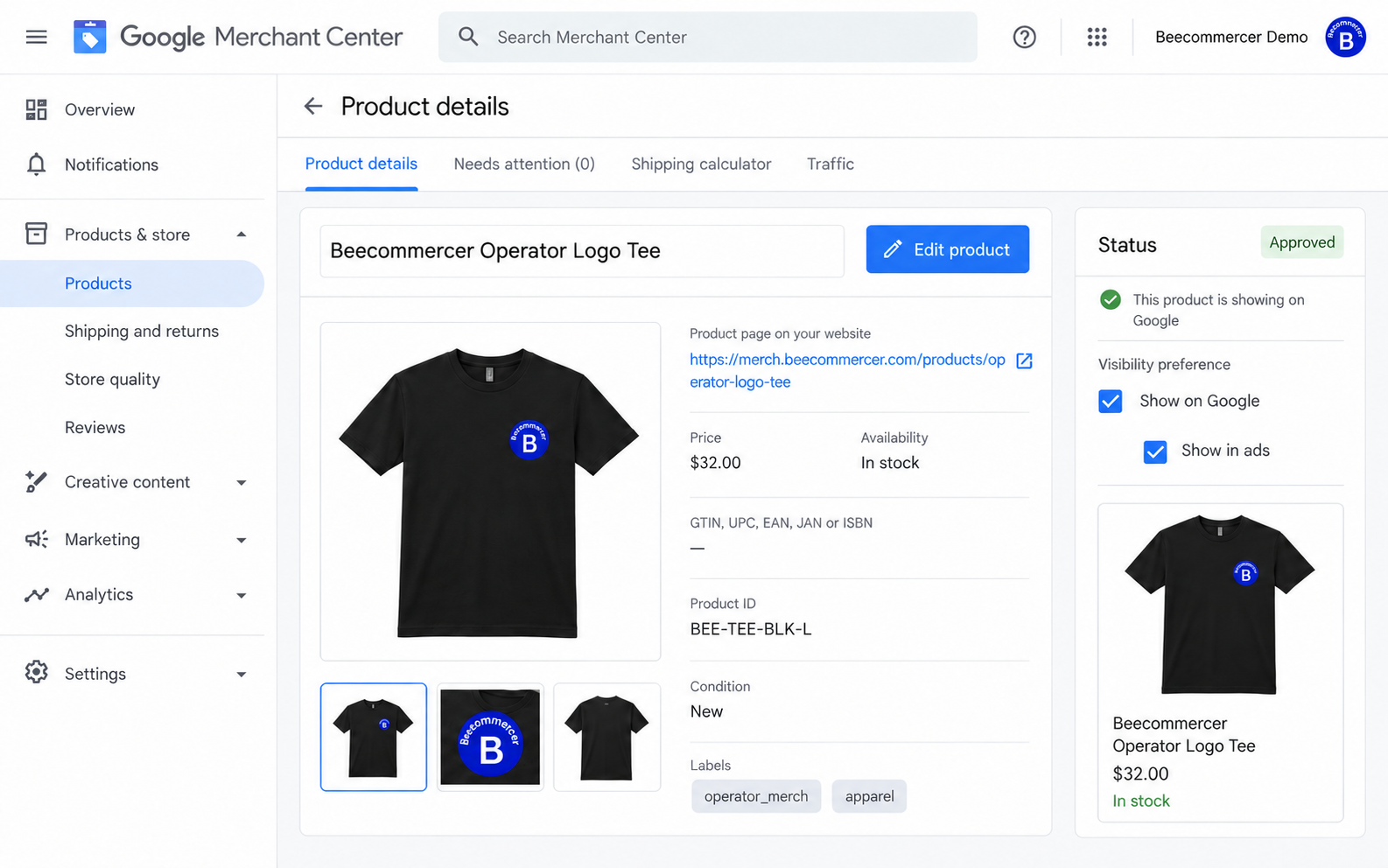
In this exercise, CVC Black is an option name. It does not establish a fiber percentage, an oversized fit or an environmental certification. The illustrated Approved badge is not evidence that the proposed wording has been checked. The short name at the top of this figure is also not a readback of a newly processed title.
Use the real product brand and manufacturer-assigned identifiers where required. Do not replace a manufacturer brand with your store name or invent a GTIN. Keep each variant’s stable ID and applicable variant/grouping attributes; changing the title does not create a complete variant-data setup.
6 Build a readable structure, then compare the draft
A useful starting pattern is product identity → important distinguishing facts → variant. Put a recognized brand or model early when it helps the buyer, but do not impose a universal brand-first rule. Use a consistent pattern within the product family and remove repeated information.
The illustrated cleanup candidate is:
Beecommercer Operator Logo Tee, CVC Black, L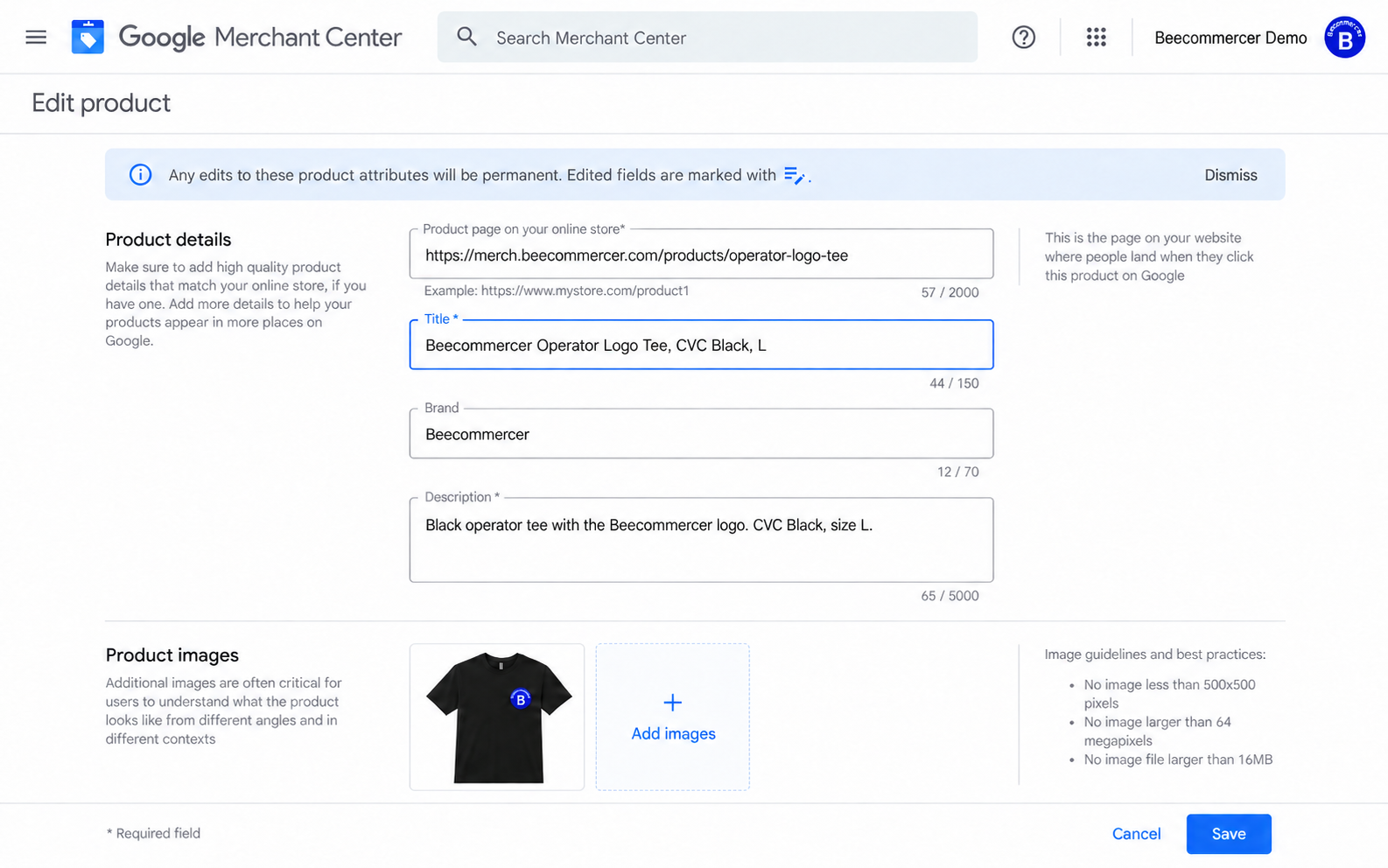
The candidate has 44 characters, 21 fewer than the original. It preserves the known facts and removes the promotional tail. This is a cleaner baseline, not proof that buyer intent has been fully researched or performance has improved. If the landing page supports a clearer product-type term, evaluate that separately instead of assuming every shorter version is better.
The following additional cases are fictional editing exercises. Treat the stated inputs as facts to verify in a real catalog, not specifications inferred from a search query.
| Given product facts | Example candidate | Why this order helps |
|---|---|---|
| Meridian is the shoe brand; Pace is the model; running shoes; blue; size 8. All appear on the selected variant’s page. | Meridian Pace Running Shoes, Blue, Size 8 | Identifies the model and product type, then the offered variant. Do not infer a gender or waterproof claim. |
| Fieldline is the brand; a 10,000 mAh USB-C power bank; documented 20 W output; black. | Fieldline 10000mAh USB-C Power Bank, 20W, Black | States the item and verified capacity/output without adding unverified device compatibility. |
| Northbay makes a black replacement ink cartridge documented as compatible with fictional printer Model Q; it is not the original manufacturer’s cartridge. | Compatible Ink Cartridge for Model Q, Northbay, Black | The compatibility qualifier makes the third-party relationship clear. Do not label it original or genuine. |
Third-party compatible and refurbished products have additional identification requirements; do not mechanically copy an original-brand-first pattern. Check Google’s guidance for third-party compatible products for your case.
7 Review a batch in Google Sheets
Download the title-review CSV template, then import it into Google Sheets. It is a review log, not an upload-ready product feed. Its rows are fictional, and their decision is still needs_fact_check. Replace the example IDs and wording with your own data and evidence.
| Column | Header | Use |
|---|---|---|
| A | id | Exact submitted product/variant ID, stored as plain text. |
| B | current_title | Unchanged copy of the original wording. |
| C | proposed_title | Candidate to review; do not overwrite the original column. |
| D | evidence_url | Landing page or specification supporting the claims. |
| E | decision | Review decision and the next action for the owner. |
| F | title_length | Character count of the candidate. |
| G | length_check | A length warning, not a policy or factual approval. |
- Format column A as plain text before pasting IDs, preserving leading zeros and punctuation.
- Paste the original and candidate into B and C. Keep one review row per intended product change.
- In F2 enter the character-count formula below. In G2 enter the length warning, then copy both down to the populated rows.
- Check the candidate against its evidence, target language and variant. Add a dated decision and owner in your working record. Only transfer reviewed rows into the actual product-data workflow.
=LEN(C2)=IF(LEN(TRIM(C2))=0,"missing_title",IF(LEN(C2)>150,"over_150","within_length_limit"))The formulas use English function names and commas; regional settings may require different separators. A 150-character value is within the field limit and a 151-character value is not. The original 65-character promotional example also passes a length-only check, which is why a person still needs to review the facts and wording.
8 Update the source that controls the title
Open Settings → Data sources and confirm how the selected product is supplied. Choose one maintained editing path. Keep the product ID, content language and feed label consistent.
For a small manual correction
- Open the intended product → Edit product → Title.
- Enter the reviewed wording and check the product and variant again.
- To make a real update in your account, use Save or the applicable confirmation control. If you are only comparing drafts, use Cancel instead.
- After processing, reopen the product and inspect its final title. Record the actual verification time.
The figures above stop at inspection or an unsaved comparison. These written steps explain how to complete a real change. Product-editor changes can override values supplied by other upload methods; do not assume the next feed sync will remove a manual change. Inspect overrides when the source and final value disagree. See Google’s quick-edit instructions.
For an existing Sheet, file or store integration
- Find the existing row or supported field mapping for the product.
- Update the appropriate title field while retaining the complete required product data and identifiers. The review CSV is not a replacement primary source.
- Save and run the integration sync, upload the corrected source or use Update where the data-source interface provides it.
- Check the latest processing result and the final product attributes, not only the successful transfer message.
If your existing integration uses structured_title, retain its required structure and source metadata and follow the field specification. Do not add a competing title merely to copy this worksheet: when both attributes are supplied, Google uses title. Check the actual exported fields with the source owner.
For a controlled bulk overlay or attribute rule
A supplemental source can update attributes of existing products; it does not create new products on its own. Where supported, enable Advanced data source management, add a supplemental source and link it to the correct primary source. A clean output with exact id and title columns can be used for a standard title update only when it matches the selected product identities, language and feed label. Verify matching and the final value before expanding. Follow Google’s primary and supplemental source instructions.
If a repeated transformation is suitable for attribute rules, open the source’s Attribute rules, choose Title and define narrow conditions. Save a draft, inspect the preview for representative IDs, test the rules and apply the reviewed result. Include missing facts and titles that already contain the attribute in your test set, so a prefix or suffix is not duplicated. The attribute-rule guide explains the available actions. Rules cannot supply evidence for an unknown material or compatibility claim.
9 Verify Merchant Center first, then the advertising result
- Check the source’s latest fetch/upload time, processing result and any unmatched or rejected rows.
- Open representative product IDs and compare submitted/source attributes with the final processed title. Confirm that variant and identity fields are unchanged.
- Check Needs attention and any manual edit or rule affecting the title. Investigate discrepancies before changing more products.
- In the linked Google Ads account, confirm the intended product scope and eligibility for the relevant Shopping or Performance Max activity. For segmentation, use the custom labels tutorial.
- Record the verified state and time in the change log. Roll back through the same controlling source if the wrong products or facts were changed, then verify again.
Saving a Sheet, fetching it, processing a product and seeing an advertising change are separate stages; do not promise a universal completion time. Google may also adapt a displayed title to the query and other product signals. Inspect the processed attribute to validate your submission rather than treating a single ad preview as the exact wording of every future impression.
10 Treat price issues as a separate task
A clearer title cannot repair a price discrepancy. This independent teaching example compares a submitted price of 29 USD with a website price of 32 USD and includes an automatic price-update notice.
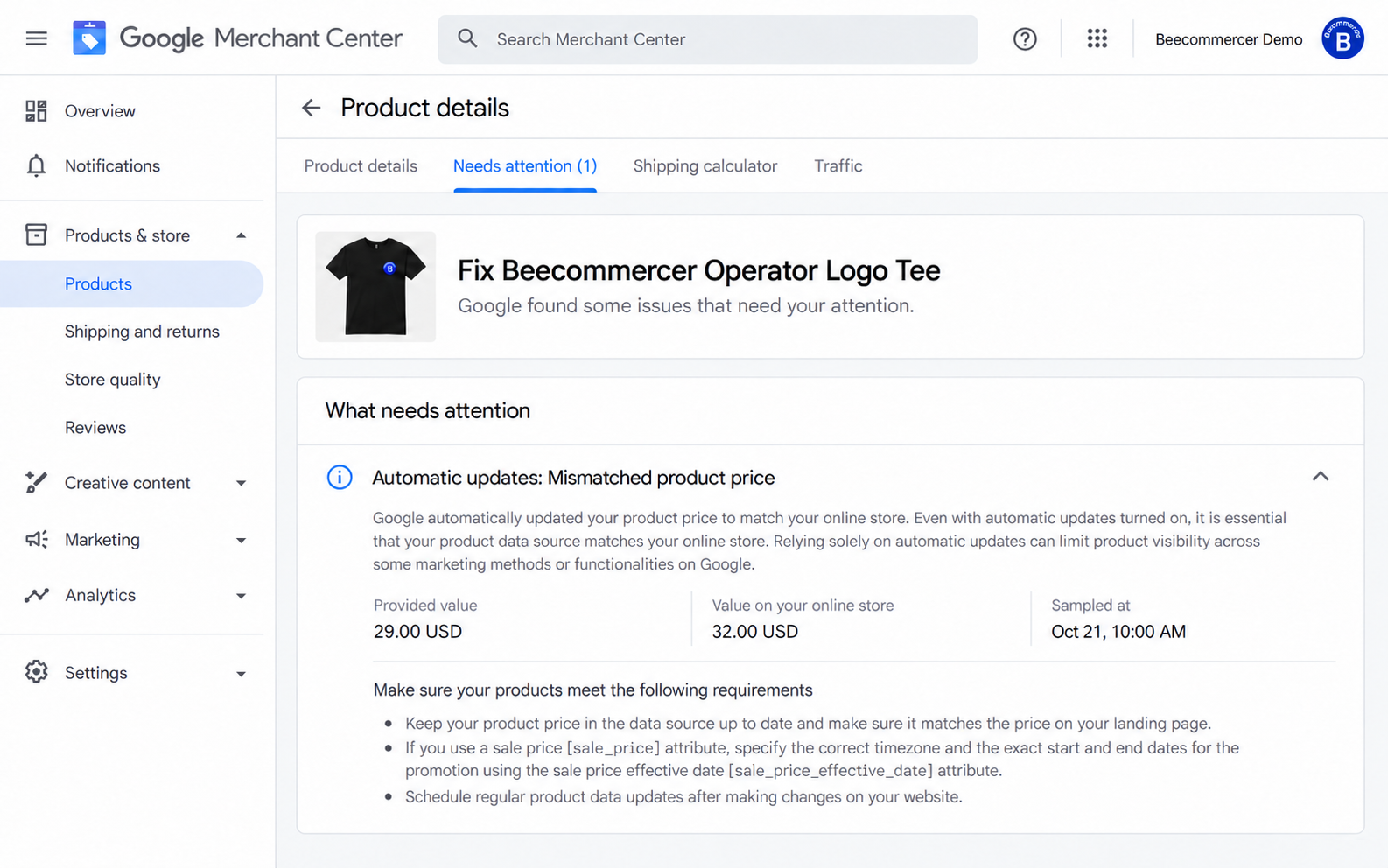
Do not read this as a before-and-after result of the title edit or as proof that a real product was disapproved. Check the selected variant, currency, current price and any valid sale-price dates and time zone. Correct the controlling source and recheck processing and the issue state. Automatic product updates can help with supported price, availability and condition discrepancies; they are not a general title-repair tool or a replacement for a maintained source. See Google’s automatic product update guidance.
11 Observe relevance, conversions and costs
Choose the comparison plan before changing the whole catalog. Keep a dated version of the original titles, the reviewed candidates, affected IDs, source owner and verified update time. Start the post-change observation after you have checked the processed values and eligibility.
- Keep market, device, date structure and conversion definitions comparable. Allow for your account’s actual conversion delay.
- Record concurrent price, promotion, inventory, bidding, budget, image, landing-page and campaign changes. Seasonal demand and auction conditions can also move the results.
- Use similar unchanged products as a directional comparison where useful, while recognizing that they are not automatically a randomized control group.
- Review eligibility, query relevance, impressions, clicks and CTR alongside purchase conversions, conversion rate, cost and conversion value. Higher CTR alone does not establish profitability.
Do not create new IDs just to run a title test. Copying two campaigns that read the same product data does not provide two independent title versions for that shared offer. Use only an experiment method your account actually supports and that you have verified; otherwise describe the comparison as an operational observation, not causal proof. With limited data, keep the conclusion open rather than inventing a percentage improvement.
12 Final check and common questions
Before expanding the batch, confirm that every reviewed title identifies the right product, contains only supported facts, distinguishes the intended variant, avoids promotional padding, meets the field limit and has been verified after processing. Keep the source mapping and rollback record with the review sheet.
Must every title start with the brand?
No single order suits every product. Prioritize clear identification and useful distinguishing information, while following any applicable category or third-party compatibility requirements.
Is a shorter title always better?
No. The 65-to-44-character example removes promotional wording. Useful, verified attributes can justify a longer title. Neither shortness nor filling all 150 characters proves better relevance or sales.
Can a new title replace separate color, size or identifier fields?
No. Maintain the applicable product-data attributes and selected-variant landing page as well as the title.
Does saving the editor prove the advertising title is updated?
No. Check processing, the final product attributes and advertising eligibility. Displayed wording can vary, so distinguish source validation from a single ad preview.